

In this video tutorial, I will show you how to export MP3 files using the Audacity audio editor.
Audacity is a free audio editing software application. In this tutorial we will install the Lame Encoder which will allow us to export an audio track from Audacity in MP3 format, we will also select audio settings for the best audio and file size compression.
Audacity Export MP3 Files Tutorial Steps:
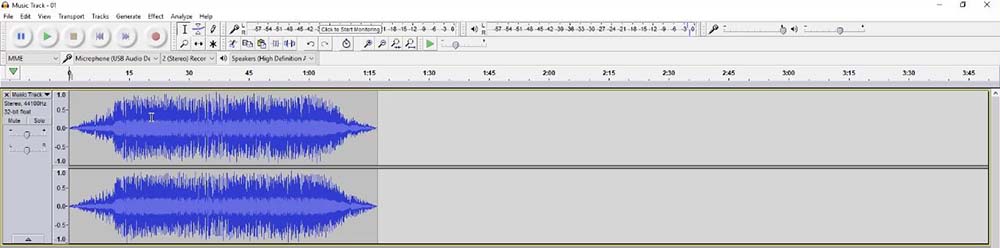
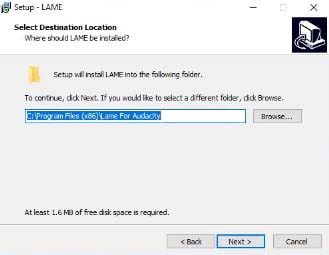
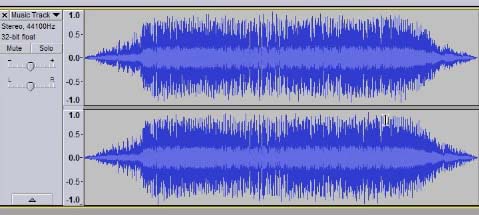
3. Open audio file in Audacity
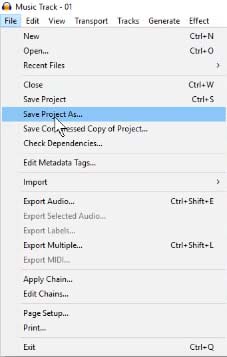
4. Select File menu / Save Project As
- Note it is advisable to save your file as an Audacity type file first so you can open it again and edit audio content if required.
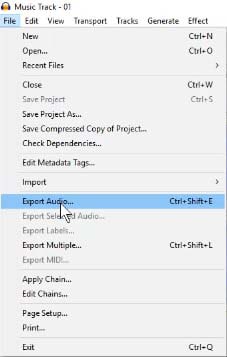
5. Select File menu / Export Audio
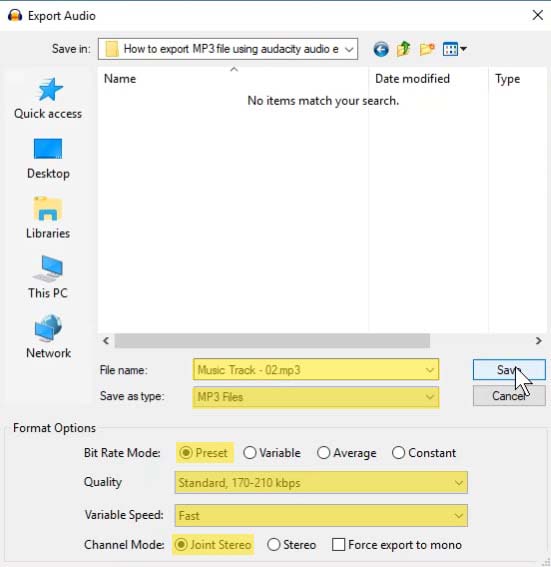
6. Enter the details for mp3 file export as shown below
Note: Before entering data, select a folder on your computer where the mp3 will be saved.
- Enter a file name
- Select MP3 Files for Save as type
- Select Preset for Bit Rate Mode
- Select Standard, 170-210 kbps for Quality
- Select Fast for Variable Speed
- Select Joint Stereo for Channel Mode
- Select Save button
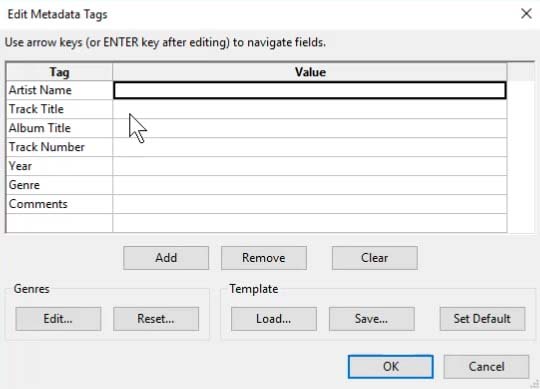
7. Enter the mp3 file metadata tags
I would advise you to enter as much data as possible as this can improve the visibility of your mp3 audio file
- Enter an Artist’s Name
- Enter a Track Title
- Enter an Album Title if appliable
- Enter a Track Number
- Enter a Year
- Enter a Genre
- Enter some Comments
Note: You can select the “Add” and “Remove” buttons to add or remove additional metadata tags.
- Select OK button
8. Now check the folder you select for saving the mp3 file in step 6 above and you will find our created mp3 file.
Watch this video tutorial on YouTube: how to export music tracks in MP3 format using Audacity audio editor
- Custom web design
- Secure and fast website solution
- Full management training
- Take control of your website
- SEO optimisation
- Reliable web hosting and emails
Audacity export mp3 settings video Tutorial by: DCP Web Developers London

