

Lost photos or videos on your SD card and need a simple way to get them back? Cameras and phones usually do not erase files right away. Instead, they mark the space as empty, but the files are still there until something new is saved over them. This short time gives you a good chance to recover deleted photos if you stop using the card immediately.
Sometimes you can easily recover files with a program, but other times you might need expert help. To help you decide what to do, we will explain the main ways to recover your photos and videos without damaging the card.

How to Recover Deleted Photos from an SD Card
In this section, we will outline practical steps that help restore deleted photos from an SD card. First, we show how to recover files with free SD card recovery software, since our experience shows that dedicated recovery tools help most users in these situations. After that, we discuss other methods and backup sources so you can choose the option that fits your case.
Method 1: Recover Photos and Videos With Disk Drill
Disk Drill provides the strongest results for SD card recovery because the program scans the card at a low level and detects RAW images, JPEGs, and video formats such as MP4 or MOV even when the file system fails to load. The software reads the entire structure of the SD card and identifies files through signatures, metadata, and known patterns, which gives it an advantage when the card shows corruption or when large video files become fragmented.
Disk Drill supports popular DSLR and mirrorless formats such as CR2, CR3, NEF, ARW, RAF, and high-resolution video formats from most camera brands. The program also allows full previews before recovery, so you can confirm that the file is intact and opens correctly. On Windows, it also recovers up to 100 MB of data for free, which lets you test its performance and restore a small set of photos or clips without purchasing a license.
Here is how to recover deleted photos using Disk Drill:
- Download Disk Drill for Windows or macOS from the official website and complete the installation.
- Insert the SD card into your computer through a built-in reader or an external USB adapter.
- Open Disk Drill and locate the SD card in the device list.
- Select the SD card and click Search for lost data. Disk Drill will then ask you to choose a scan mode: Universal Scan or Advanced Camera Recovery. Universal Scan works best for recent deletions and quickly finds most photos and videos. Advanced Camera Recovery is for tougher cases, such as fragmented video files or heavily corrupted cards, and can rebuild multimedia from devices like GoPro or digital cameras. Choose it when the standard scan doesn’t locate your files.

- Disk Drill will scan the entire device, detect RAW photos, JPEGs, and video formats, and present them in categories. Open the Pictures or Videos section and filter by formats such as JPG, CR2, CR3, NEF, ARW, MP4, and MOV.
- Use the preview feature to check the integrity of each file.
- Select the files you need and click Recover, then choose a safe destination that is not the SD card.

- Open the recovered files in your preferred editor or video player to confirm that they open correctly
After you restore the files, we recommend that you create at least one more backup copy on a separate storage device or cloud service. Once you confirm that everything is safe, consider formatting the SD card inside the camera to rebuild a clean file system before the next shoot. This reduces the chance of logical issues like corruption. And if you already formatted the card and then realized some files were still missing, check these steps on how to unformat SD card
Method 2: Recover Photos and Videos With Recuva
Recuva works well when the deletion happened recently, and the card still mounts without errors. The program focuses on common formats such as JPEG, PNG, MP4, MOV, and some basic RAW files. We recommend it because Recuva feels easy to use, so it fits beginners.
It is a convenient option for quick checks, but our tests show the program struggles with more complex RAW photo formats. It often fails to parse or reconstruct them properly. However, if your files are simple JPEGs, the chances are much better. Recuva typically handles basic photo deletions well and can recover many standard image types without issues
Here is how to recover deleted photos from an SD card for free with Recuva:
- Download Recuva from the official Piriform website and install it on your Windows PC.
- Insert the SD card and wait for the system to detect it.
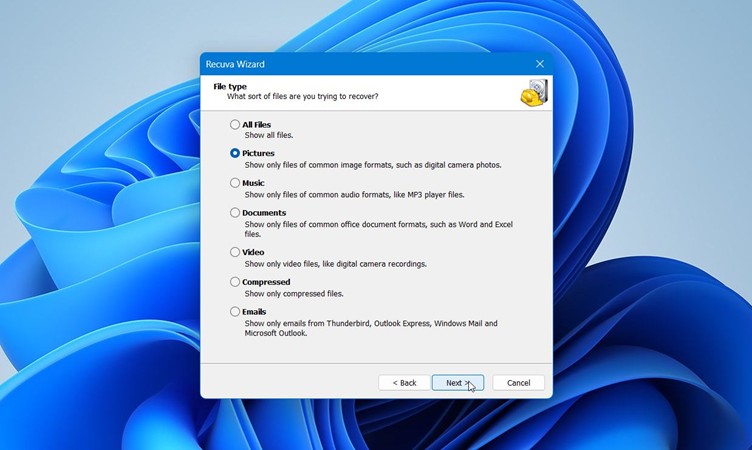
- Open Recuva and choose the type of files you want to restore, such as Pictures or Videos.
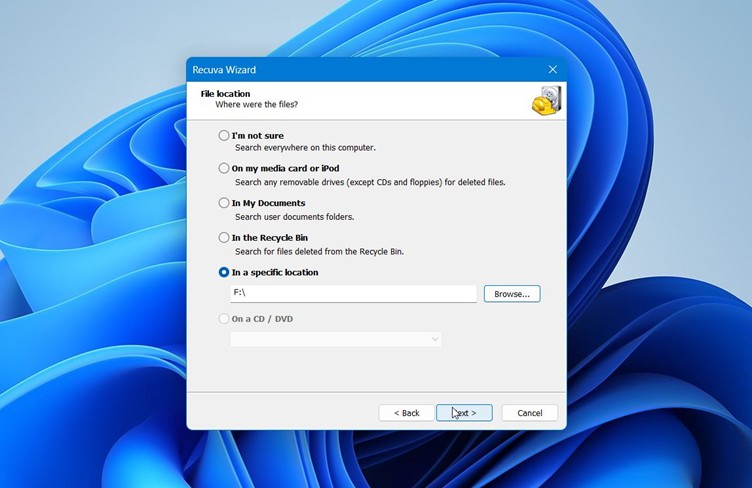
- Select the SD card as the target location.
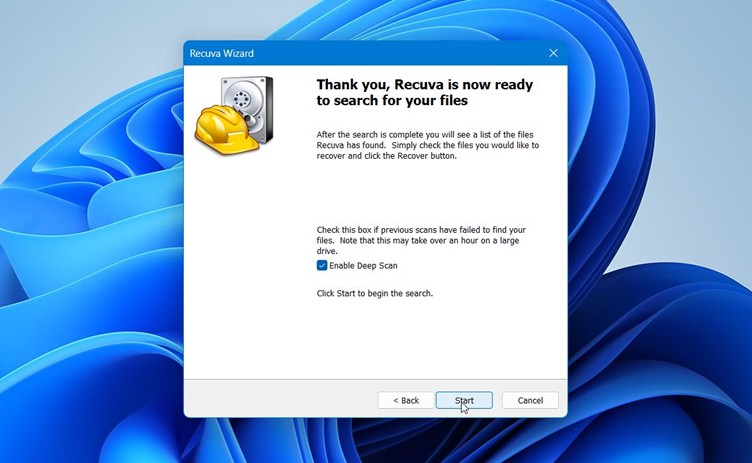
- Start a Deep Scan to locate files that no longer appear in the directory.
- Review the results and check the condition indicator for each file. Recover the files you need.
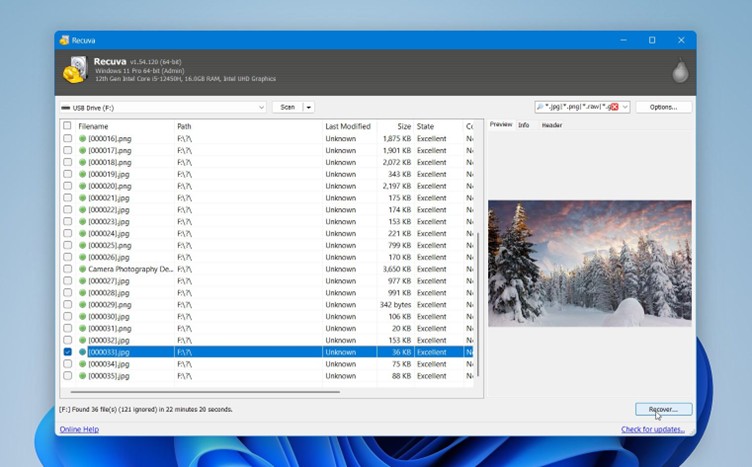
- Choose a safe destination on your computer for recovered files.
- Open the restored photos and videos to confirm that they display or play correctly.
Recuva works well for simple photo or video loss cases, but its results often stop at basic recovery. When it fails to find the files you need, try Method 1, as more advanced tools frequently retrieve data that Recuva cannot detect, especially on cards with corruption or damaged file system structures.
Method 3: Restore Media From Backups or Synced Storage
A backup often restores photos and videos faster than any recovery tool because the files return exactly as they were saved, without corruption or missing metadata. Many photographers and creators use cloud storage or sync utilities without thinking about it, so the missing media might already exist elsewhere. Cloud services like OneDrive, iCloud, Google Drive or Dropbox may store deleted items or copies.
Here is how to recover deleted photos from an SD card without software:
- Log in to your Google account from any device.
- Check My Drive and any project folders where you store imported photos or videos.
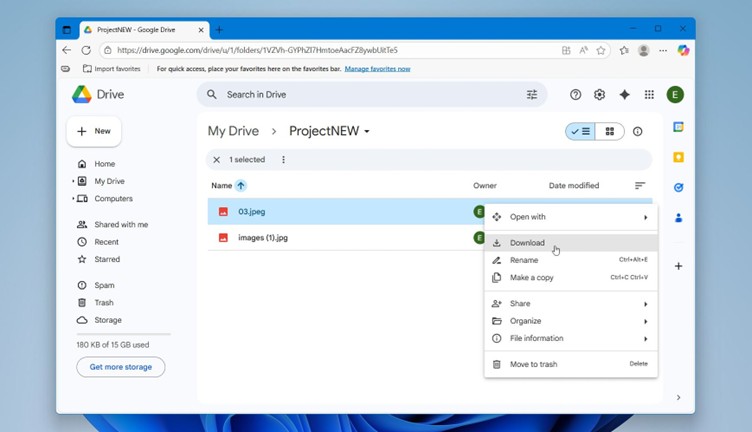
- Open Trash, where deleted items stay for 30 days.

- Select the file and click Restore to return it to its original folder.
- Review Version History to recover earlier versions of edited photos or videos.
Camera companion apps like Canon Camera Connect or Nikon SnapBridge provide another useful backup path. Many of these apps save automatic copies of JPEGs, short video clips, or even full resolution files in the background.
Method 4: Use Professional Recovery Services
The last method we recommend is professional recovery services, which offer the highest chance of success when the SD card becomes physically damaged or severely corrupted. Recovery labs use specialized equipment to bypass the card’s controller, extract raw data directly from NAND memory chips, and reconstruct complex files such as RAW photos or 4K/8K videos that software cannot restore. According to our experience, this approach becomes necessary when:
- The SD card does not mount at all or appears with 0 MB capacity.
- The card heats up or behaves inconsistently.
- The file system is missing or unreadable.
- The card shows physical cracks or water damage.
- Video files show severe corruption that software cannot repair.
Recovery labs also create protected snapshots of unstable cards, which prevents further deterioration during analysis. The process usually takes more time and may cost more than software-based recovery, but it remains the most reliable path when the card holds valuable footage or important professional work.
Photo and Video File Types and Their Recovery Challenges
SD cards hold many types of digital files, and each type acts a bit differently when there is a problem. Photos and videos do not always work the same way, especially if the card gets damaged or has a sudden error. Some file types are easier to get back because their layout is simple and easy to spot. Others are saved in large pieces across the card, which makes getting them back much less certain.
- RAW photo formats like CR2, CR3, NEF, ARW, and RAF hold a lot of minimally processed sensor data. These files have distinctive signatures that recovery programs can often detect during deep scans. However, due to their large size, they may become fragmented on the SD card if it has been used for several shoots without reformatting. When this fragmentation happens, the software might locate the file but may not be able to fully reconstruct it.
- JPEGs stay small and simple. Their file structure begins with a clear signature, so most recovery tools detect them easily, even when the directory table breaks or the SD card shows logical damage. Because JPEGs do not take up much storage space, they often sit in continuous sectors, which raises the chance of full recovery. You may still run into incomplete previews if the card has bad sectors or if the file was overwritten, but many JPEGs return without major issues.
- Videos present the biggest challenge during SD card recovery. Formats such as MP4, MOV, and MXF store long streams of data that rarely stay together in one place. High-resolution clips, especially 4K or 8K footage, often stretch across large areas of the card. Once fragmentation affects these files, the underlying data becomes harder to reassemble. Recovery software might locate the video but fail to play it, or you may see a clip that opens and then freezes halfway. Large videos also suffer more when the SD card has physical damage or unstable firmware.
Another important point is metadata, which stores details such as timestamps, resolution, and camera settings. When corruption affects the SD card, you may recover the file but lose some metadata because it often sits in smaller, more fragile parts of the file structure.
This problem appears most often in video files because they rely heavily on indexing information. As long as the SD card remains unused and you rely on recovery tools that support all major file types, your chances of restoring your media stay high.
FAQ
Can corrupted MP4 or MOV files be repaired after recovery?
Corrupted MP4 and MOV files often recover in a damaged state because these formats rely on indexing information that breaks easily when the SD card suffers fragmentation or file system errors. In many cases, you can still repair the video with tools like Clever Online Video Repair if the main data blocks remain intact. Tools such as Stellar Video Repair, VLC’s built-in repair function, and specialized recovery labs can rebuild missing headers or damaged sections of the file. The success rate depends on how much of the original structure remains untouched and how much of the clip was overwritten before recovery.
Why does my SD card show as RAW or unreadable, and can I still recover the media?
A card usually switches to RAW or unreadable mode when the file system breaks, the directory table becomes corrupted, or the card encounters physical wear. The camera and computer stop recognizing the format, but the underlying photos and videos often stay on the card. As long as the card still mounts in Disk Management or Disk Utility, recovery software can scan the raw sectors and locate files based on their signatures. Even if the card refuses to open, the data remains recoverable until new writes overwrite it.
Can I recover data without a computer?
Recovery without a computer is possible, but limited. Mobile apps on Android can sometimes read deleted photos from microSD cards, especially when the card mounts directly through the phone. These apps work best for simple JPEG loss and small files. They struggle with RAW photos, MP4 or MOV videos, or any case that involves fragmentation or corruption. For mixed media or professional footage, a desktop recovery tool remains the more reliable choice.
What causes missing audio or broken frames in recovered video files?
Missing audio and broken frames usually appear when large video files fragment across the card. MP4 and MOV formats store audio and video streams in separate sections, so corruption in one location affects only part of the file. Damaged headers, bad sectors, or interrupted writes also create gaps in the recovered footage. If the camera was powered off during recording or the card was near full capacity, the video may lose important index data that tells players how to stitch everything together. Some repair tools can rebuild these missing elements, but severe fragmentation lowers the chance of a clean fix.

