

Social media is all about sharing content and connecting with others through visual media. Content creators and influencers use online platforms to showcase their creativity and engage with their audience.
Apart from YouTube, two of the most popular platforms for sharing videos are TikTok and Instagram. However, both these platforms have different requirements when it comes to video size, aspect ratio, and format. This can be a challenge for content creators who want to share their videos on both platforms.
In this guide, we will discuss how to resize a video for TikTok and Instagram. We will go over the parameters of TikTok and Instagram videos and how to change the size and format using different methods.
Parameters of TikTok and Instagram videos
Whether you’re a business looking for social media platforms or just an enthusiast, successfully sharing a video on TikTok or Instagram means understanding their specific requirements. Many businesses also combine resizing tools with an smm panel to streamline publishing and engagement.
Here are the main parameters for both platforms:
Video Size
For TikTok, the maximum file size is 287.6 MB on iOS and 72 MB on Android. And if before, the duration of a TikTok video was limited to 15 seconds, now you can create videos up to 10 minutes.
On the other hand, Instagram allows a 4 GB maximum file size for both in-feed videos and Reels. You can create Reels up to 90 seconds long and upload from 3 seconds up to 60 minutes of video content in your feed.
Aspect Ratio
TikTok videos need to be in a 9:16 aspect ratio, which is the vertical format. This is because most users view TikTok on their mobile devices, and any other aspect ratio will result in black bars on the screen.
Instagram also prefers 9:16 for in-feed videos and Reels. However, it also supports square (1:1) and landscape (16:9) formats for feed videos. This gives creators more flexibility in how they want to present their content.
Video Format
Both TikTok and Instagram support a wide range of video formats. As for the TikTok video format, it comes only with several options, including MP4, MOV, and HEVC. Most TikTokers prefer using MP4 for its compatibility with most devices and online platforms, as well as its balance between file size and quality.
The video format for Instagram includes the same as TikTok, so you cannot post in anything like MKV, AVI, or FLV. MP4 remains the best option, as MOV files tend to cause issues on some devices when uploading.
Video Resolution
The TikTok’s minimum dimension is 720 × 1280 pixels, with the standard being 1080 × 1920 pixels. You can upload videos up to 4K resolution, but they will be automatically cropped to fit the standard aspect ratio. Plus, the video should be between 30-60 FPS.
Instagram also has a minimum requirement of 720 pixels, with the standard being 1080 × 1920 pixels. You can’t upload videos in any other resolution. The frame rate should also be between 30–60 FPS — the higher, the smoother.
How to change the video size and format for TikTok and Instagram
Now that you know the specific parameters for both TikTok and Instagram videos, let’s discuss how to change them. Depending on the device and program, you can convert a video to MP4 online or use a desktop video resolution changer. Let’s explore the methods with Movavi Video Converter and Kapwing as an example.
Using Movavi Video Converter to resize and convert videos
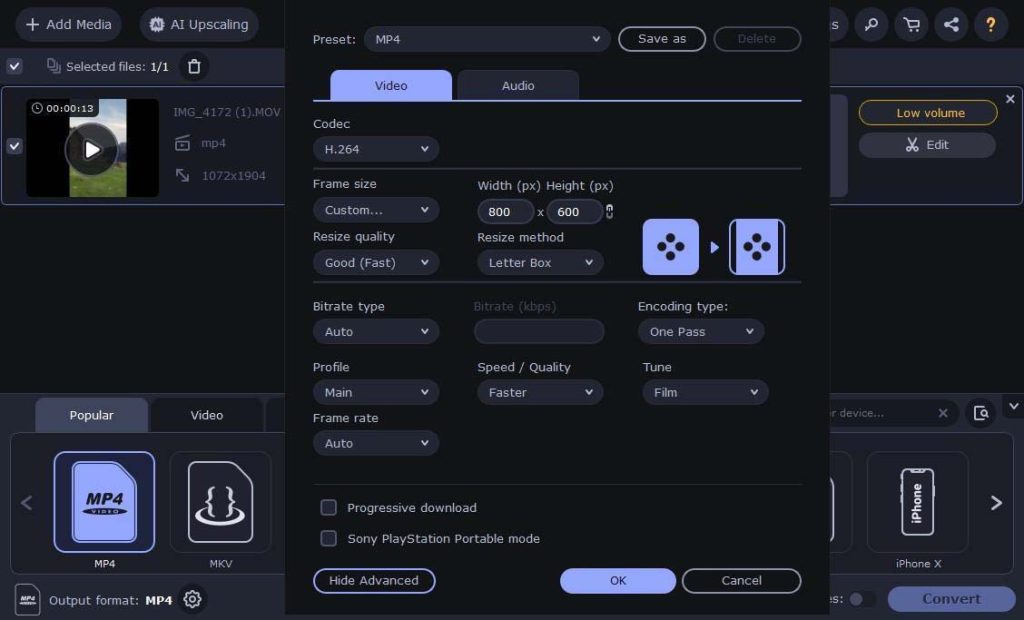
Movavi Video Converter is a versatile video resolution changer that allows you to convert and edit videos quickly. If you want to convert or resize your video for TikTok or Instagram, follow these steps:
- Download and install Movavi Video Converter on your computer.
- Launch the program and click on the “Add Media” button to import your video, or just drag and drop it into the program window.
- Select the “Video” tab and select your preferred output format (MP4, for example). You can also choose the preset specifically for different devices like iOS or Android.
- Click on the “Settings” button in the bottom-left corner. Here, you can change the frame size, bitrate, frame rate, prefer speed/quality, and more. Click “OK” to save your changes.
- Optionally, you can also go into the “Edit” section to crop, rotate, adjust colour, add filters, and tweak the audio.
- Hit “Convert” to start processing your video. The program uses hardware acceleration (enable it in the “Preferences” if needed) to speed up processing. Once completed, Movavi Video Converter will automatically open the output folder.
Using Kapwing to resize and convert videos
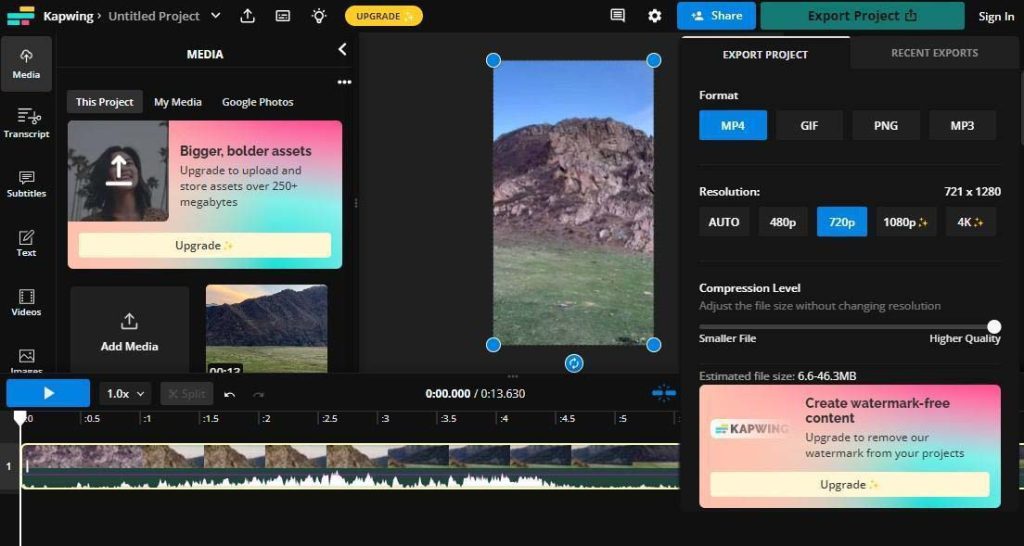
Still, if you don’t have a PC or a laptop or just would rather not download even any free conversion app, you can do it all online. Kapwing is an online platform that allows you to edit and save your video in the desired format and ratio. Here’s how:
- Go to the website and click on the “Tools” tab. Select “Convert video” from the list > “Start converting”.
- Upload your video by dragging it to the upload box, selecting it from files, pasting a URL, or importing from Google Drive or phone.
- Optionally, you can edit video with transitions, text, images, etc. You can also change the aspect ratio and video quality.
- In the top-right corner, select “Export Project”. Click MP4 format, pick resolution, and drag the slider for quality. Check if the estimated file size fits the platform’s requirements and click “Export”.
Conclusion
Creating videos for TikTok and Instagram is partially different but also similar. Both social media platforms have their specific parameters for video size, aspect ratio, format, and resolution, and if something doesn’t meet the criteria, all you need to do is resize your video.
Whether through desktop software or online tools, knowing how to resize a video and change its format is a quick and easy process. So don’t let technical requirements hold you back from creating engaging content for your audience. Now, armed with this knowledge, go ahead and share your videos with confidence.
- Custom web design
- Secure and fast website solution
- Full management training
- Take control of your website
- SEO optimisation
- Reliable web hosting and emails
Article by Pankaj Shah: DCP Website Designers

