

Running a WordPress site sounds easy, but there are plenty of traps waiting for anyone, seasoned techie or first-timer alike. This guide points out the 15 biggest mistakes people usually slip into-and, crucially, gives you the fixes that actually work in the real world, not just in a perfect one.
Whether you want your website faster, safer, or easier to use, each section breaks things down in plain English, helping you get past those problems with solutions that make sense.
Follow along, avoid these classic errors, and you’ll have a WordPress site that works well and is a lot less hassle to run.
WordPress Setup and Configuration Mistakes That Cause Problems Later
Getting WordPress set up neatly at the beginning makes the world of difference later on. Those seemingly minor setup choices have a habit of coming back round with trouble if you don’t tackle them early. A slow website, awkward search rankings, or security gaps often start with settings most people rush past.
Many users put their faith in the cheapest hosting, click straight through the welcome screens, or use whatever usernames and links WordPress spits out by default. These might not break your site first time out, but eventually, issues with performance, safety, or finding your site on Google are bound to crop up.
Selecting the right hosting, links, user settings will determine how well your website stands up to traffic, hackers, and future updates. This next section dives in, making sure your first steps put you well ahead of the usual drama, with each piece explained simply so you get it right from the off.
Choosing the Wrong Hosting Provider Damages Site Performance
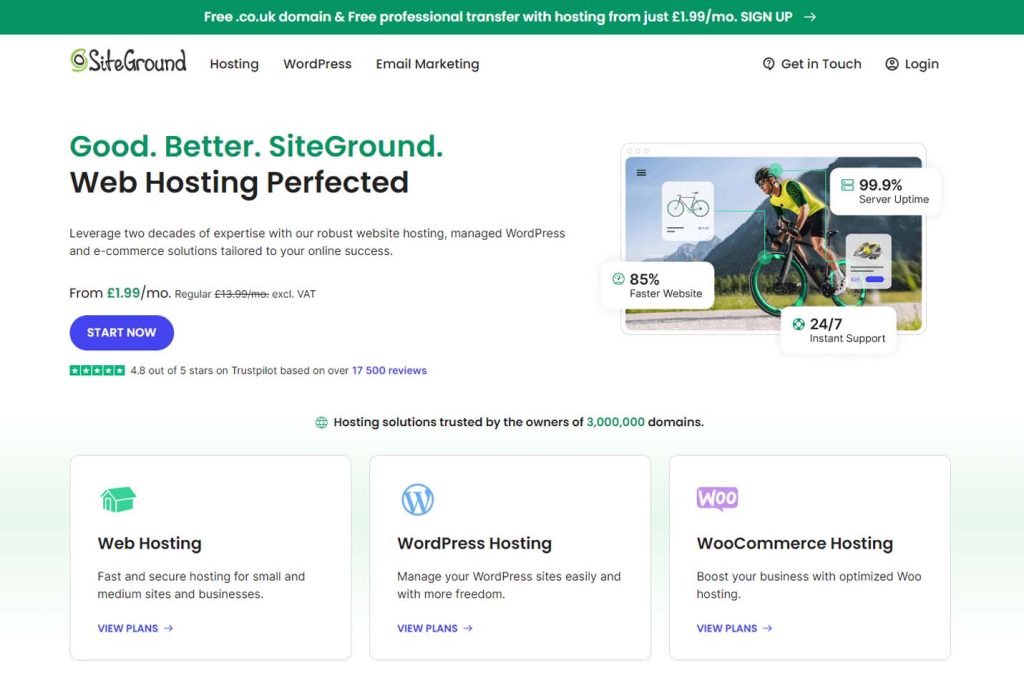
Your hosting provider is the behind-the-scenes engine for your WordPress website. If you go for a rock-bottom, crowded shared hosting plan, your site will likely crawl along slowly and might even drop offline when you need it most. Sluggish hosts can’t keep up as your audience grows, and some don’t give you proper security or support if something breaks.
The right hosting provider should deliver speed, good uptime, and service that goes beyond taking your money. In the UK, look for solid customer reviews, clear support options, and hosting servers optimised for WordPress. Spending a few quid more upfront on hosting usually saves hours of stress and lost business down the line.
Permalink Structure and SEO Practices for Healthy URLs
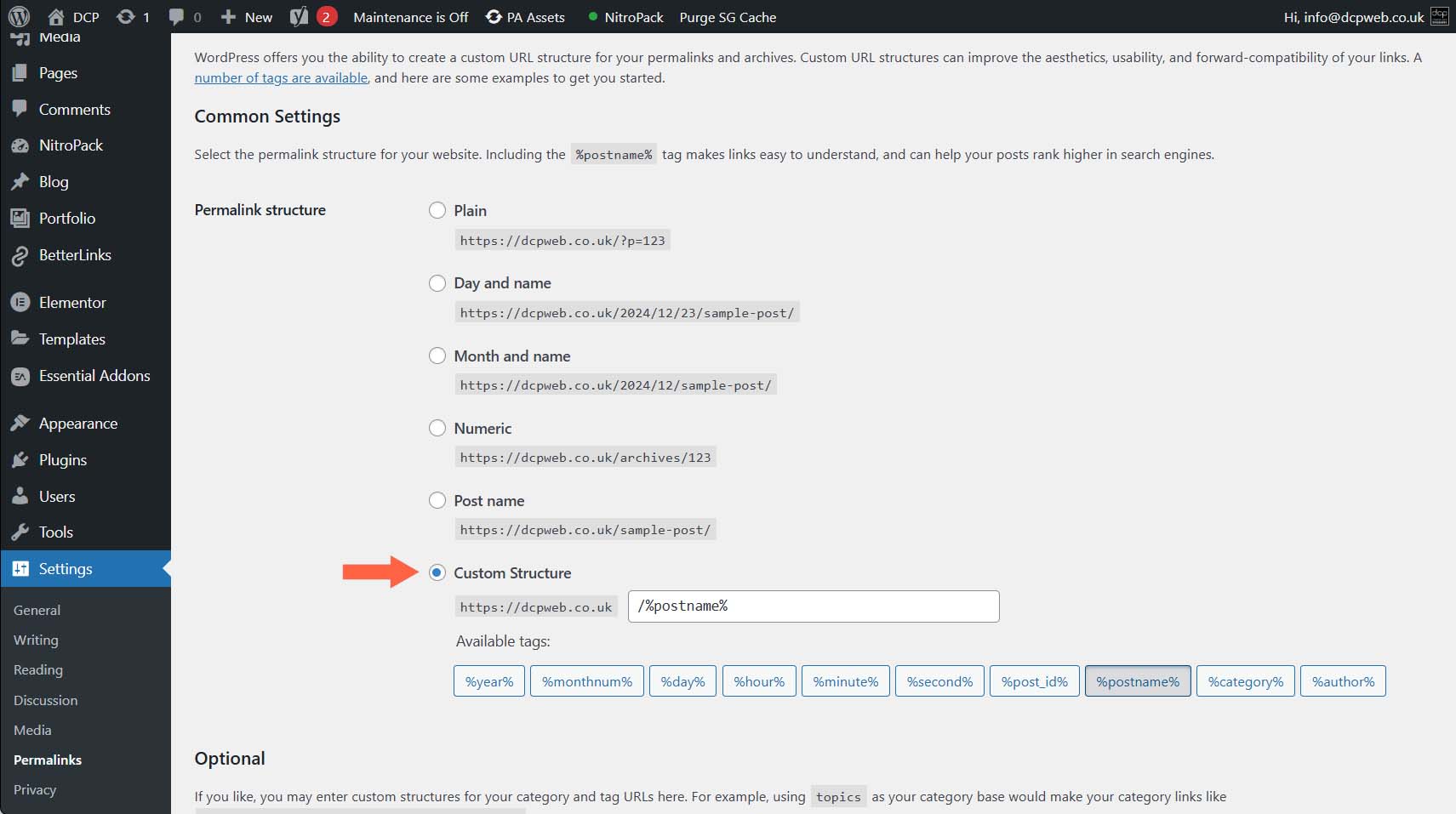
WordPress comes out of the box with messy, unreadable permalink URLs that look like “yoursite.com/?p=123”. These aren’t great for humans and make it hard for Google to work out what your site’s pages are about. Good SEO begins with clear, simple URLs such as “/about-us” or “/blog/healthy-cooking-tips”.
Changing permalinks to use post names or custom structures makes your links easier to share, read, and index. Watch out for capital letters, unnecessary numbers, or stopwords that look confusing. By setting the right permalink structure early, you help your traffic and boost your chances of ranking higher on search engines.
Default User Roles and WordPress Admin Settings That Put Your Site at Risk
Leaving your usernames and admin roles on their default settings invites trouble. The default “admin” username is a playground for automated attacks and easy guesswork. Permissions that are too loose can let anyone make dangerous changes.
Always create a unique admin name, update passwords to something truly strong, and review every user’s role-only give people the access they really need.
Change the default WordPress theme and tighten settings in the dashboard to stay safe. You don’t have to be an IT pro; these are simple habits that stop big headaches later.
Typical Security Vulnerabilities in WordPress and How to Prevent Them

Security catches many website owners off guard. WordPress is powerful, but its popularity makes it a favourite target for hackers and malware. Most of the big disasters start with something small-like downloading a dodgy plugin, using a weak password, or putting off setting up HTTPS.
New users often don’t see how these slips open up doors to attackers or leak visitors’ data. Poor habits like installing cracked software save a few pounds at first, but can destroy a business if malware sneaks in. Even basics like using “password123” or skipping website encryption leave glaring holes in your defences.
The next part of this guide highlights what you should focus on to protect your site and your visitors. Each section breaks down the most common mistakes, why they matter in the real world, and shows exactly what to do to keep risks low and confidence high.
Nulled Products Like Cracked Themes or Plugins Invite Malware
Nulled themes or pirated plugins might seem like a bargain. In reality, they carry hidden dangers such as malware, backdoors, and outdated code that attackers exploit. Installing these products risks not just your website, but could leak private data and break UK law on software use.
WordPress sites using nulled products often become slow, unreliable, or get blacklisted in search. Choosing official and trusted places to download themes or plugins is always safer. You get support, updates, and a site that’s clean-not crawling with hidden problems.
Weak Passwords and Login Issues Make Sites an Easy Target
Using an easy password like “admin123” or your pet’s name is an open invite to hackers. Automated bots constantly try simple logins, and if you don’t limit attempts or use strong passwords, your site is likely to get broken into.
Setting solid, long passwords and adding two-factor authentication can stop most brute-force attacks cold. Simple security plugins let you limit login tries or alert you to suspicious behaviour. These changes take minutes to set up and lock out the majority of break-in attempts on any WordPress site.
Forgetting HTTPS Protocol Weakens Website Security
Running your site over plain HTTP risks exposing everything sent between your visitors and the website-including passwords or payment details. In the UK, using HTTPS is now the standard for trust and privacy, and Google ranks sites higher when they use it.
Setting up HTTPS is a matter of getting an SSL certificate from your host or a free service and activating it in WordPress. Once active, visitors get a secure green padlock, and you protect your data, boost trust, and make sure your search rankings don’t slip due to missing encryption.
Plugin and Theme Management Pitfalls That Slow Down Sites
After you’ve got WordPress installed, it’s tempting to customise every inch of it right away. This is where many people go wild with plugins, chase flashy new themes, or ignore those little red update warnings. All these shortcuts can slow your site, trigger ugly bugs, or even make it stop working altogether.
Piling on too many add-ons makes troubleshooting a nightmare and slows your website to the point where visitors give up waiting. Skipping updates leaves cracks open for hackers, while ignoring compatibility checks sets you up for breakdowns. The real trick is knowing which plugins or themes are worth your time and how to keep everything ticking along nicely.
In the sections below, you’ll find smart ways to dodge these common pitfalls. Each one focuses on keeping your WordPress site quick, steady, and stress-free, even as you add new features or stretch its limits.
Too Many WordPress Plugins or Bad Quality Slows Everything Down
Throwing dozens of plugins onto your WordPress site might sound clever, but it usually has the opposite effect. Each extra plugin adds code, uses resources, and can clash with others-slowing down your pages and scaring off visitors.
Stick to high-quality plugins from trusted sources and uninstall anything you don’t need. Check reviews and last update dates before you add new ones. For UK business owners, this helps your website stay quick, clean, and reliable every single day.
Why Failing To Update WordPress Causes Bugs and Security Holes
Every time you hit “remind me later” on a WordPress update, you risk opening the gate to hackers or breaking the site with incompatible plugins. Outdated themes and plugins are a common way for viruses to slip in or for new features to break unexpectedly.
Make a habit of checking for updates weekly, and let WordPress handle automatic updates where possible. This way, you dodge nasty bugs, plug security holes, and save yourself from awkward downtime that annoys both customers and colleagues.
Not Testing With a Default WordPress Theme Makes Troubleshooting Hard
If your site starts playing up-maybe the layout breaks or a feature disappears-switching to a default theme like Twenty Twenty-Three is a handy way to spot the problem. If things work fine with a default theme, the culprit is probably your custom theme or a recent update.
This smart move makes it much quicker and less stressful to sort out glitches. Anyone can use this trick, whether you’re running a shop, a blog, or something bigger. It saves time and gets your site running smoothly again without endless guessing games.
Common Technical Errors Like White Screen of Death or Internal Server Error
No one likes seeing their website vanish or freeze, but technical errors are part of life with WordPress. The scariest problems strike out of nowhere: one day everything’s fine, the next is a blank white page, an error code, or a message about a database being out for lunch.
Spotting the signs early helps you fix things fast. Knowing the difference between a memory problem and a broken link stops you chasing your tail with the wrong fix. The best part? Most of these issues don’t need deep technical skills-just some patience and knowing what to check first.
The guide below spells out the causes and the no-nonsense steps for each problem, making sure you get back online before your visitors even notice you were gone.
White Screen of Death Stops Your Website Displaying
When you load your site and see nothing but a pure white page, that’s the “White Screen of Death”. This usually means WordPress has hit a memory limit or there’s a serious clash between plugins or themes. Your website is technically there-but it’s hidden in the dark for anyone who visits.
Quick fixes involve upping your PHP memory limit, switching off recent plugins, or re-activating a default theme. Get things working again and refine plugin choices or upgrades to stop the whiteout returning.
Internal Server Error and Database Connection Failures
- Internal Server Error (500): This cryptic message means something has gone wrong with your site’s server. Most often, it comes from a broken .htaccess file, dodgy plugin code, or incorrect permissions.
- Check .htaccess File: Rename or replace your .htaccess file through FTP to test if bad rules caused the error.
- Review Plugins and Themes: Disable all plugins. If the site loads, re-enable each one at a time to spot the troublemaker. Switch to a default WordPress theme to rule out theme conflicts.
- Database Connection Error: This pops up when WordPress can’t connect to your MySQL database. Double check your database username, password, and host in the wp-config.php file for typos or old info.
- Permissions and Server Health: Make sure core files and folders have correct permissions (usually 644 or 755 in the root folder). Check with your hosting support if you suspect downtime or server restrictions.
Running step by step through the basics means even non-technical site managers can figure out what’s wrong and get the website running without panic.
Website Backups and Maintenance Mode Errors Leave You Exposed
No one thinks about backups until something goes wrong, but failing to save copies of your website is a recipe for disaster. Likewise, mistakes made during updates-like getting stuck in maintenance mode-can make your site vanish from the web just when you need it.
Backup and update mistakes don’t care if your site is big or small. Power cuts, corrupted files, or a clumsy click can wipe everything in a heartbeat. With so many backup options available, it’s easier than ever to protect yourself from starting over after a crash or attack.
This section gets you set up for peace of mind, explaining how to keep your site’s content safe and get back online if maintenance mode ever tries to hold your website hostage.
Not Performing Regular Website Backups Risks Everything
If you’ve not set up regular website backups, you’re just one crash or hack away from losing the lot. Backups mean you can restore everything with a couple of clicks, saving hours or even days of lost work if something goes sideways.
Automate your backups with a WordPress plugin or your host’s tools, and keep copies in more than one place-think cloud storage and a drive at home. It’s quick, it’s easy, and it saves far more hassle than fixing things from scratch after disaster strikes.
Maintenance Mode Problems During WordPress Updates
WordPress flips into maintenance mode during updates, showing a “Briefly unavailable for scheduled maintenance” notice. Ideally, it pops right out again once the update is done. Sometimes, though, it gets stuck and locks everyone out-even you.
To fix this, deleting the “.maintenance” file from your site’s root folder often clears things up. Avoid trouble by updating one thing at a time and always check backups before big changes. That way, your site quickly comes back online, and visitors aren’t left staring at warning screens.
Content, Image and SEO Mistakes That Affect User Experience
What people see and do on your website matters as much as how it’s built under the bonnet. Even a quick website can lose visitors if it’s cluttered with huge images, broken links, or no tracking to see what’s working. These slip-ups drop your Google ranking, send people to dead ends, or stop you tweaking the site for real business results.
Small details like compressing images and checking links often feel low-priority at launch. Over time, though, they build into major headaches for visitors and site owners alike. Setting up tools to track user behaviour and spot accessibility issues helps more people enjoy and stick around your site.
This next section spells out where user experience goes off the rails and helps you patch things up fast to keep everyone moving in the right direction.
Image Upload and Image Optimisation for Faster Sites
Uploading big, uncompressed images is a surefire way to make your WordPress site crawl. Large files eat up bandwidth and keep visitors twiddling their thumbs waiting for pictures to load. Even with fast broadband, no one wants a sluggish website.
Shrink images before uploading them by using compressed formats like JPEG for photos or WebP for balance of size and quality. Give every file a clear, descriptive name, and use WordPress’s built-in tools or plugins to further reduce size. Your site will load faster, look sharper, and keep people coming back instead of bouncing off frustrated.
Avoiding 404 Errors and Broken Links in WordPress
- Why Links Break: Moving pages or deleting posts triggers 404 errors for anyone who clicks old bookmarks or links from other sites.
- Impact on Visitors and Google: Seeing “Page not found” kills trust and hurts your search rankings, as Google spots broken links quickly.
- Regular Link Checks: Use free link-checking tools to scan your site monthly. Replace or redirect broken URLs to keep everyone on track.
- Good Habits: Update links in menus or old posts anytime you move content. Keeping all links current puts you ahead of most WordPress owners.
Website Analytics and Accessibility Mistakes to Avoid
- Missing Analytics: Not setting up Google Analytics, Hotjar, or similar tools means you can’t see who visits your site or what they do there.
- Ignoring Accessibility: Sites that lack alt text for images, keyboard navigation, or readable fonts shut out many users-including those with disabilities.
- Quick Fixes: Set up analytics as soon as possible to measure what works, and use accessibility plugins or checklists to spot easy changes you can make to help all visitors enjoy the site.
Code and Dashboard Changes That May Break Your WordPress Site
Tinkering with WordPress can be tempting, especially when you’re trying to fix a bug or give your site something extra. But making changes through the dashboard or direct edits often leads to the dreaded “syntax error”, crashing pages, or forcing you to start over if something goes wrong.
Things get risky if you dive into core files, try to shove code into the wrong place, or reduce memory limits to save resources. Without backups and the right tools, it’s too easy to lock yourself out and cause chaos even before you know what’s happened.
The following sections show you common slip-ups, what warning signs to watch out for, and how to patch things up without digging yourself a deeper hole. With a bit of caution, you can make changes safely and keep the site humming along.
Syntax Error Warnings After Editing WordPress Files
A ‘syntax error’ in WordPress appears when there’s a simple coding mistake-maybe a missing bracket or a stray comma-in your PHP or CSS files. Editing code directly within the dashboard using the built-in editor is where most folks trip up.
To avoid lockouts, use safer code editors and always copy files before changes. If a syntax error pops up, undo the last edit or restore a backup to get your site back. Minimise risk by keeping edits to child themes or custom plugins instead of core files.
Debug Mode and Fixing WordPress Issues Safely
Debug mode is a WordPress feature that helps spot and fix problems by showing detailed error messages. Enabling it in your wp-config.php lets you see what’s broken, but always turn it off once you’re done or your visitors will see those errors too.
To track down errors, switch off plugins one by one, or roll back recent changes. Patience helps-work methodically, only change one thing at a time, and always have a fresh backup before you start. That way, even major issues won’t set you back too far.
Editing Core Files or Setting Memory Too Low Can Break WordPress
Messing with core WordPress files can cause major failures, from infinite loading to fatal errors that take down your entire site. Lowering the PHP memory limit too far can also make updates and plugins fail. Both are common DIY slip-ups.
To fix memory problems, adjust the memory settings in wp-config.php or ask your host for help. If the site breaks, restore from a backup or use FTP to replace edited files with originals. Stick to safer customisation through child themes and never edit core files unless you’ve got a solid recovery plan.
Summary
By recognising and avoiding the common WordPress mistakes highlighted in this guide, you can take full control of your website’s performance and future growth.
Implementing these practical fixes will help you boost loading speed, improve security, streamline management, and deliver a better experience for your visitors.
WordPress is an incredible platform when used correctly, and even small improvements can make a big difference over time.
Stay proactive, keep your tools updated, and continue learning as your site evolves. With the right approach, you’ll enjoy a smoother, more reliable WordPress website that supports your goals and helps your business thrive online.
Don’t forget DCP provides custom WordPress web design services for businesses across the UK, delivering professional, responsive and SEO-optimised websites.
Our expert team builds tailored solutions that enhance user experience, support growth, and help companies stand out online with strong functionality, modern design, and ongoing support.
Contact us today if you need help.

