Improve your image editing skills by following our free GIMP tutorials, learn how to edit images, remove backgrounds, create YouTube thumbnails, and lots more.
Do you want to convert a photo into a paint effect using GIMP image editing software? Well, you are in luck, in this tutorial I will show you how to convert any images into a paint effect using GIMP 2.10 and G'Mic Plugin. Use this effect to add some flare to your artwork when you share it on your social media accounts.
In this video tutorial, I will show you how to reset GIMP 2.10 tools layout. Have you ever moved a tool window in GIMP and simply can not get it back to the original place? I know this can be frustrating so I made this simple tutorial showing you how to fix the issue super quick.
In this video tutorial, I will show you how to remove background from an image using GIMP 2.10. There are many different ways to remove a background from an image using GIMP 2.10. We could use a layer mask or the foreground select tool. Both of these methods are good but for the best and most accurate results, it is better to use the Paths tool.
In this video tutorial, I will show you how to outline image in GIMP. There are many different ways to outline an image using GIMP, in this tutorial I will show you a quick and easy technique.
In this video tutorial, I will show you how to Change Background Colour in GIMP. The first goal is to edit the picture and remove the current background using the magic wand tool (fuzzy select). We can then add a different background using a layer below the main image.
In this video tutorial, I will show you how to use the Fuzzy Select Tool (Magic Wand) in Gimp 2.10. The fuzzy select tool in GIMP is useful when you want to remove a background from an image. I suggest you only use this tool if the background is a simple plain colour.
In this video tutorial, I will show you how to use the Foreground Select Tool in Gimp 2.10. The foreground select tool can be used to cut out an image in GIMP. I use this tool when the background and foreground content have high contrast.
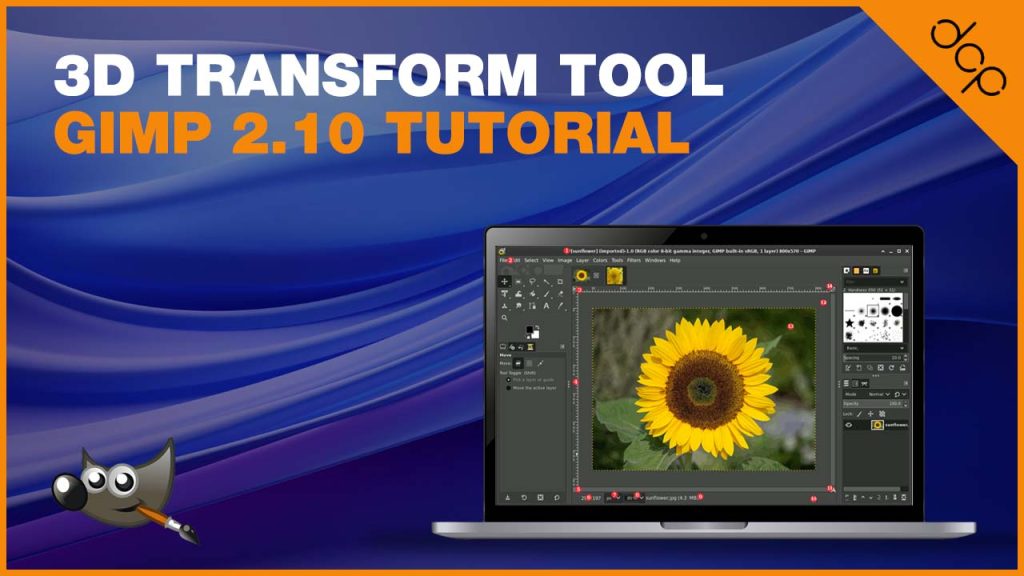
In this video tutorial, I will show you how to use the 3D Transform Tool in GIMP 2.10.18. You can use the 3D transform tool in GIMP to manipulate an image in 3D space.
In this video tutorial, I will show you how to use the alignment tool in GIMP 2.10.18. Understanding how to align content in your GIMP project can save lots of time when creating visual artwork.
In this video tutorial, I will show you how to use the perspective tool in GIMP 2.10.18. In this tutorial example, we will use the GIMP perspective tool to overlay an image on a monitor screen.
In this video tutorial, I will show you how to install GIMP 2.10.18. GIMP is a free and powerful image editing and manipulation programme. You can you use to edit photos or create custom artwork.
Blur Backgrounds in GIMP 2.10 - In this video tutorial I will show you how to create a Shallow Depth of Field Effect using GIMP 2.10. In this video, we will use the foreground selection tool and the Gaussian blur effect.
In this video tutorial, I will show you how to install the latest version of GIMP 2.10.14. If you are a start-up business with limited funds, then GIMP is the perfect choice for graphic editing. Why you may ask? - Its's FREE!
In this video tutorial, I will show you an image editing technique called Double Exposure. The effect combines two different images. We will use 3 layers to create the effect and I will show you some other useful GIMP techniques like removing background from an image.
In this video tutorial, I will show you how to change eye colour using Gimp 2.10. We will use the brush tools to select the eyes and then use the overlay function, this will give us control over the colour of the eyes using the hue and saturation tool.
In this video tutorial, I will show you how to use the GIMP free select tool to make multiple selections on an image. The free select tool is good for when you want to create a more precise selection in an image using GIMP.
In this video tutorial, I will show you how to use the GIMP Clone Tool to remove an object from an image. We will also use the GIMP Clone Tool to fix the sky background after removing the object from the image. I often use the GIMP clone (STAMP tool) to remove content for images when creating artwork for client projects.
In this video tutorial, I will show you how to create a double exposure image using GIMP 2.10. Why not create some awesome custom artwork using GIMP image editing software? In this tutorial, I will show you how to create a double exposure image using a layer mask in GIMP. We will use the layer mask to isolate a specific part of the image before adding the double exposure effect.
In this video tutorial, I will show you how to remove background from an image using GIMP 2.10 Fuzzy Select Tool. making transparent images in GIMP is super simple when using the Fuzzy Select Tool (Magic Wand). In this tutorial, I will also show you how to use the foreground select tool in GIMP 2.10. This tutorial is suitable for images which have a clear and simple background.
In this video tutorial, I will show you how to use layers in GIMP 2.10. Layers are used to place images in a stack to create artwork. By using transparent images you can lay images in a specific order to create compelling artwork. layers can contain both images and text.
In this video tutorial, I will show you how to batch process images using GIMP 2.0. If you want to resize multiple images, compress images or change image file formats, then using the BIMP plugin for GIMP can save you lots of time. I often use the image batch processing plugin when I need to compress and resize lots of images.
In this video tutorial, I will show you how to Change the Icon Size in GIMP. Tool icons can be super small on software sometimes and selecting the correct tool can be tricky when the icons are too small. The good news is GIMP allows you to change the sizes of icons using a few simple mouse clicks!
In this video tutorial, I will show you how to blur an image background In GIMP. This is also known as the Bokeh Effect. Add some flair to your artwork by blurring this background to give the image a professional look. This can easily achieve using free GIMP image editing software.
In this video tutorial, I will show you how to install Gimp 2.10.4 on Windows 10. GIMP is a free and powerful image editing software application. You can use GIMP in your business to create artwork for marketing campaigns, newsletter designs, logo designs, banner adverts, website design and much more.

In this video tutorial, I will show you how to change the colour of an object using GIMP free image editor. Changing the colour of an object in a picture is a common task usually completed using Adobe Photoshop, but you can also complete this task using GIMP free image editing software. GIMP can be installed on Windows, Apple Mac and Linux computers.
In this video tutorial, I will give you a quick introduction to layers tool in GIMP. Layers tool allows you to stack images and edit each layer separately. This is a common process used when creating digital artwork or photo manipulation.
In this video tutorial, I will show you how to combine two different images using GIMP image editor. Elephant In The Antarctic! We will use layers in GIMP to create the artwork. I will also show how to export.
In this video tutorial, I will show you how to quickly isolate and change specific colours in an image using the GIMP Colour Rotate Tool. If you want to make some quick changes to the colour of an object in an image then this technique can get the job done super quick. You can also experiment and get different effects based on how you use the GIMP Colour Rotate Tool.
In this video tutorial, I will show you how to use the GIMP Clone Tool to remove specific content from an image. We will use the clone tool in this tutorial to remove the man from the image.
In this video tutorial, I will show you how to remove a white background / make background transparent using GIMP 2.8. This video tutorial will give you a step-by-step guide on how to remove the white background from an image. In this video tutorial, we will use GIMP 2.8 to remove the background using a simple and quick technique. We will use various tools such as layers and masks to achieve the required goal.
In this video tutorial, I will show you how to Crop and Resize an Image Using GIMP 2.8. GIMP is free and powerful image manipulation and editing program. You can download GIMP for Windows, Linux and Apple Mac computers. In this tutorial, I will focus on showing you how to crop and resize images. In most cases, this technique is used when adding images to your website. In essence, we are cropping and resizing the image to fit our website correctly but to also reduce the overall file size.
In this video tutorial, I will show you how to design a business logo using GIMP 2.8. GIMP is a powerful and free image manipulation program. You can use GIMP to create compelling artwork for your business website and marketing material.