pankaj shah
Do you want an awesome website for your business?

Magix Movie Edit Pro Tutorials

Find Magix Movie Edit Pro tutorials and start editing videos using this low-cost video editing alterative.

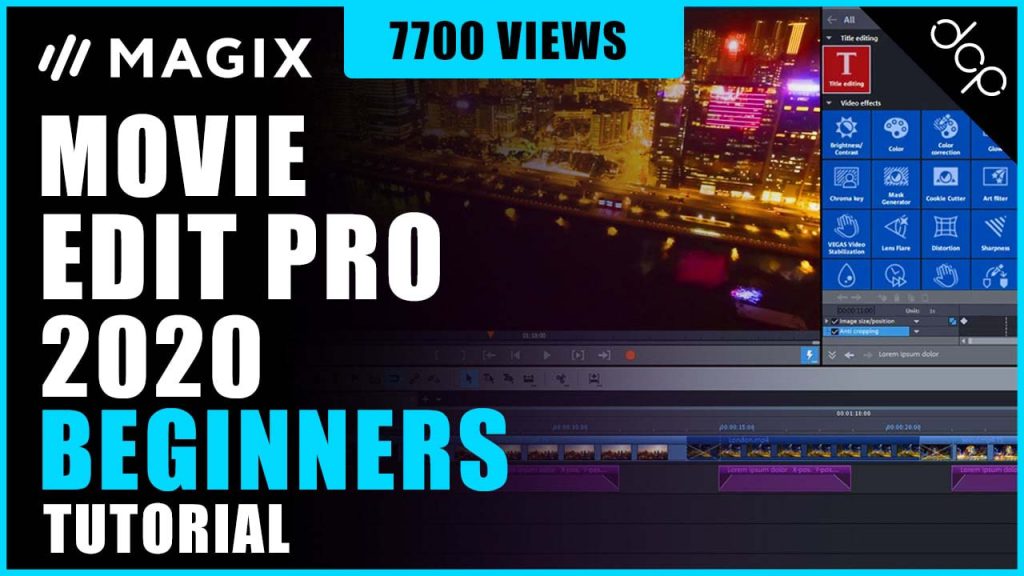
In this video tutorial, I will show you how to edit video content using Magix Movie Edit Pro. I will show you how to cut video content, add transitions, add images, use motion tracking, add audio content and much more. Simply watch this video if you want to learn how to use Magix Movie Editor.

In this video tutorial, I will show you how to use the Picture in Picture function in Magix Movie Edit Pro Plus 2020. The goal is to combine 2 different videos using an overlay. To complete this Movie Edit Pro Picture in Picture Tutorial you will need two different video clips.
In this video tutorial, I will show you how to use the green screen chroma key function in Magix Movie Edit Pro Plus 2020. The goal is to remove the green background and overlay video content on a background or video clip.
In this video tutorial, I will show you how to Quickly Add Video Intro using Magix Movie Edit Pro Plus 2020. Magix has some awesome pre-made video intros so if you are new to video editing or just starting a new YouTube channel then this feature can add some creativity to your video content.
In this video tutorial, I will show you how to batch process videos using Magix Movie Edit Pro Plus 2020. The goal is to edit lots of videos and then use a single step to process all videos.
In this video tutorial, I will show you how to edit video content using Magix Movie Edit Pro Plus 2020. I will show you how to cut video content, add transitions and add audio music. 
In this video tutorial, I will show you how to create a custom Facebook Video Cover using Magix Movie Edit Pro.
In this second video tutorial, I will show you how to edit video content using Movie Edit Premium. I will show you how to cut video content, add transitions, add images, add audio content.
In this video tutorial, I will show you how to batch process videos using Magix Movie Edit Pro. Batch processing can save you time, especially if you are uploading lots of video content to social media channels such as Facebook or YouTube.
In this video tutorial, I will show you how to export your video project into the MP4 file format. The final step in the tutorial is to export your video so you can upload to YouTube and your other social networks such as Facebook. The time it takes to export the video will depend on the speed of your computer and duration on the video content. I would recommend creating your video in 1080p resolution and uploading the best quality to your social networks.
In this video tutorial, I will show you how to add a title ticker to your video project in movie edit pro. Adding a title ticker gives you the ability to draw attention to a specific content which you want to emphasise on your final video exported project. You can use a title ticker to promote your business, another video, your social media accounts, and much more. I would suggest you keep the content short and simple so it is easy to read and understand.
In this video tutorial, I will show you how to add audio to your video project using Movie Edit Pro. Adding audio to your video project can give your video content more compelling experience for your viewers. Audio can enhance the overall experience when someone is watching your video on YouTube or Facebook. You can add music, voice-over or a combination of both.
In this video tutorial, I will show you how to add transitions between the elements in your video project. Using transitions between the content on your video project can add some visual flair to your final video render. Adding transitions is a simple drag and drop process but you need to think in advance when capturing your video content as you need some still frames for the transition as shown in the video tutorial.
In this video tutorial, I will show you how to edit video content in Magix Movie Edit Pro. Editing your video content is super simple when using Magix Movie Edit Pro. In most cases, you will need to simply cut out unwanted content and possibly change the order of video content which is displayed in your file video file. In the video tutorial above we use the cutting tool to remove content which is not required.
In this video tutorial, I will show you how to add content to the timeline in Movie Edit Pro. Adding content to the  Magix Movie Edit Pro timeline is a simple process. It is worth thinking about what the sequence of content will be before loving content to the timeline. For example, you may start your video with an intro animation, then a title image slide, then the main video content and finish with an ending image slide.
In this video tutorial, I will show you how to browse the content which you want to add to your video project in Movie Edit Pro. Browsing content on your computer is super simple when using Magix Movie Edit Pro. Simply use the browsing screen and then drag and drop content into the video editing timeline. You can also drag and drop directly from a folder on your computer.
In this video tutorial, I will show you how to select the correct film settings for Magix Movie Edit Pro. Selecting the correct film settings for your project is an important step when using  Magix Movie Edit Pro. Understanding how the different options can affect the end result will help you to get the best quality video when you export your content. In most cases, you will need to select a resolution of 1920 x 1080 (1080p).
In this video tutorial, I will show you how to edit basic videos using Magix Movie Edit Pro Plus 2013.
In this video tutorial, I will show you how to edit basic videos using Magix Movie Edit Pro Plus. Magix Movie Edit Pro Plus is a popular video editing software application. Unfortunately Magix Movie Edit Pro Plus is not free but I think it is great value and fairly easy to use once you have a good understanding.
In this tutorial I will show you how to fix audio and video sync problem I encountered when editing video using Movie Edit Pro. The video was captured using Snagit 11 at 15fps (frames per sec) and I used Handbrake to increase frame rate to 30pfs.