

Website speed is a crucial factor for user experience and search engine rankings. Slow websites frustrate users, increase bounce rates, and hurt SEO. If your WordPress website isn’t loading as fast as you’d like, don’t worry!

This guide will walk you through proven techniques to speed up your WordPress website and provide a better experience for visitors.
Why Website Speed Matters
Before diving into the techniques, let’s understand why speed is so important:
- Improved User Experience: Fast websites keep users engaged and reduce frustration.
- Higher Search Rankings: Google considers page speed as a ranking factor for SEO.
- Better Conversions: Faster websites lead to higher sales and more leads.
1. Choose a Fast, Lightweight WordPress Theme
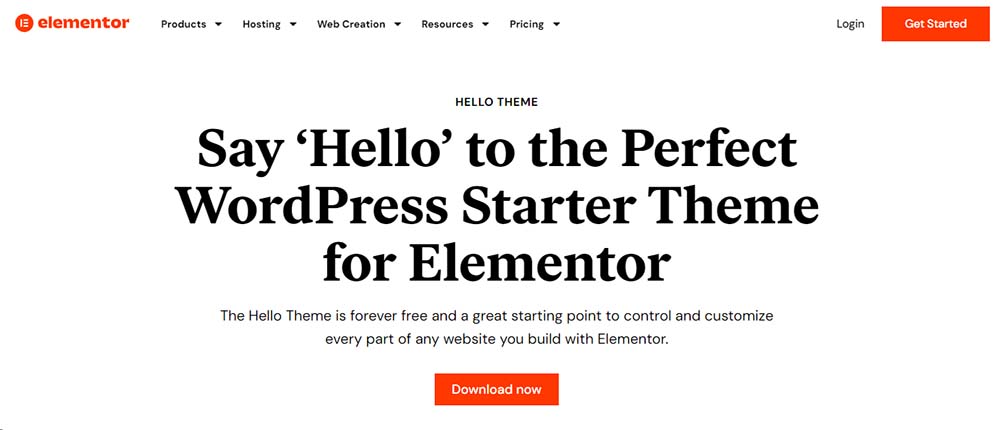
Your WordPress theme plays a significant role in website speed. A bloated theme with unnecessary features can slow down your site.
- Recommendations: Use lightweight themes such as Astra, GeneratePress, Elementor Hello or Neve. These themes are optimised for speed and offer flexibility for customisation.
- Tip: Avoid themes with heavy reliance on external scripts or too many built-in features you don’t need.
2. Use a Reliable Hosting Provider

Your hosting provider determines your site’s foundational speed. Cheap or shared hosting often leads to slow loading times, especially during traffic spikes.
Recommended Hosting Providers:
- SiteGround: Known for its speed-optimised servers and excellent customer support.
- Kinsta: A managed WordPress hosting solution with performance-focused infrastructure.
- WP Engine: Offers enterprise-level hosting with built-in caching and CDN.
Tip: Opt for managed WordPress hosting to ensure server resources are optimised for WordPress.
3. Implement Caching
Caching stores a static version of your site, reducing server load and speeding up page delivery.
Recommended Caching Plugins:
- WP Rocket: A premium plugin that handles caching, file optimisation, and more.
- W3 Total Cache: A powerful free plugin offering extensive caching features.
- LiteSpeed Cache: Ideal for websites hosted on LiteSpeed servers.
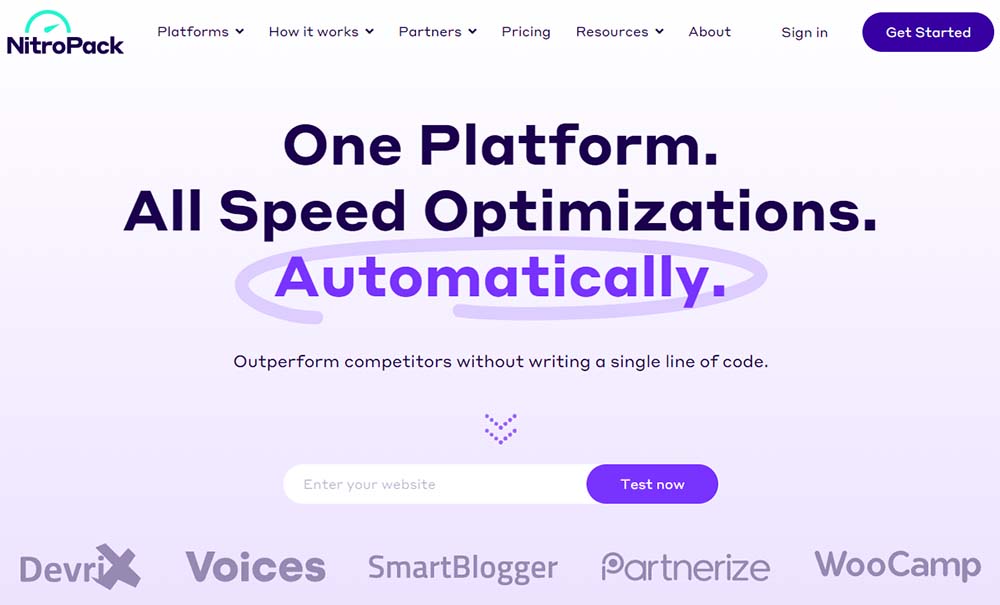
- NitroPack: Ideal for websites that require caching and built in CDN.
Tip: Combine caching with a Content Delivery Network (CDN) for maximum speed.
4. Use a Content Delivery Network (CDN)

A CDN stores copies of your website’s static files (e.g., images, CSS, JavaScript) on multiple servers around the world. When a user visits your site, the CDN delivers files from the server closest to their location.
Popular CDN Services:
- Cloudflare: A free and reliable CDN with additional security features.
- KeyCDN: Affordable and easy-to-integrate CDN for WordPress.
- BunnyCDN: Focuses on speed and security.
Tip: Many hosting providers integrate with CDNs, simplifying the setup process.
5. Optimise Images
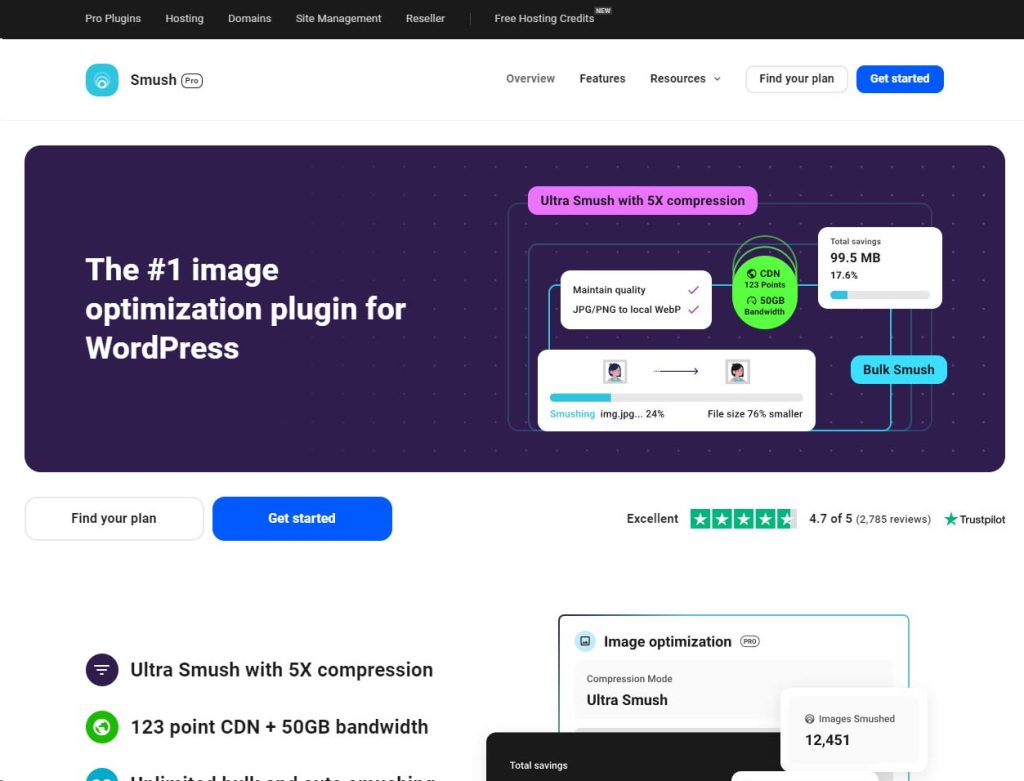
Images are often the largest files on a webpage and can significantly slow down loading times if not optimised.
How to Optimise Images:
- Compress images using tools like TinyPNG or plugins like Smush and ShortPixel.
- Use modern image formats like WebP, which offer smaller file sizes without sacrificing quality.
- Enable lazy loading, so images load only when they appear in the user’s viewport.
Tip: WordPress 5.5+ has built-in lazy loading, but you can enhance it with plugins like Lazy Load by WP Rocket.
6. Minify and Combine CSS, JavaScript, and HTML
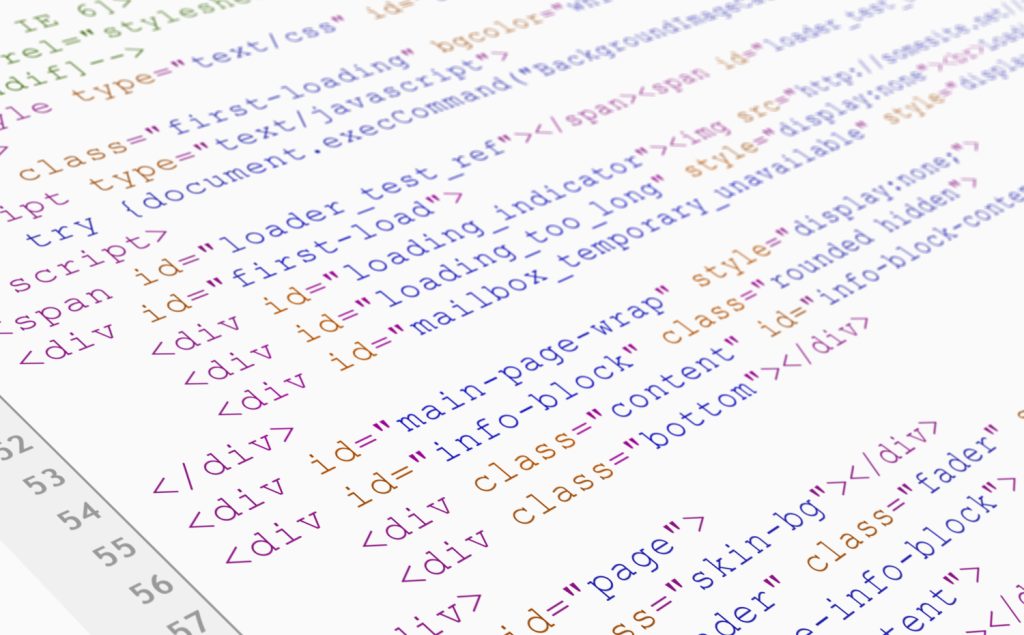
Minification removes unnecessary characters from code (e.g., spaces, comments), while combining reduces the number of HTTP requests.
Recommended Tools:
- Autoptimize: Minifies and combines CSS, JavaScript, and HTML files effortlessly.
- WP Rocket: Includes file optimiaation features for minification and combining.
- Asset CleanUp: Allows you to selectively disable unused scripts and styles on specific pages.
Tip: Test your site after minification to ensure that no functionality is broken.
7. Limit the Use of Plugins

While plugins add functionality, too many can slow down your website, especially if they are poorly coded.
How to Optimise Plugin Usage:
- Remove unused or redundant plugins.
- Use multipurpose plugins like Jetpack to consolidate features.
- Regularly update plugins to ensure compatibility and performance improvements.
Tip: Use a plugin like Query Monitor to identify plugins that consume excessive resources.
8. Enable Gzip Compression

Gzip compression reduces the size of your website files before they’re sent to the user’s browser, speeding up load times.
How to Enable Gzip:
- Use a plugin like WP Rocket or W3 Total Cache.
- Alternatively, enable Gzip via your .htaccess file (consult your hosting provider if unsure).
Tip: Use tools like Gzip Compression Checker to confirm it’s enabled.
9. Optimise Your Database

As your WordPress site grows, the database accumulates unnecessary data, such as post revisions, spam comments, and transient options.
Recommended Tools:
- WP-Optimize: Cleans up your database and performs regular maintenance.
- Advanced Database Cleaner: Allows for more in-depth customisation of database optimisation tasks.
Tip: Backup your database before performing any cleanup operations.
10. Monitor and Improve Your Site's Speed
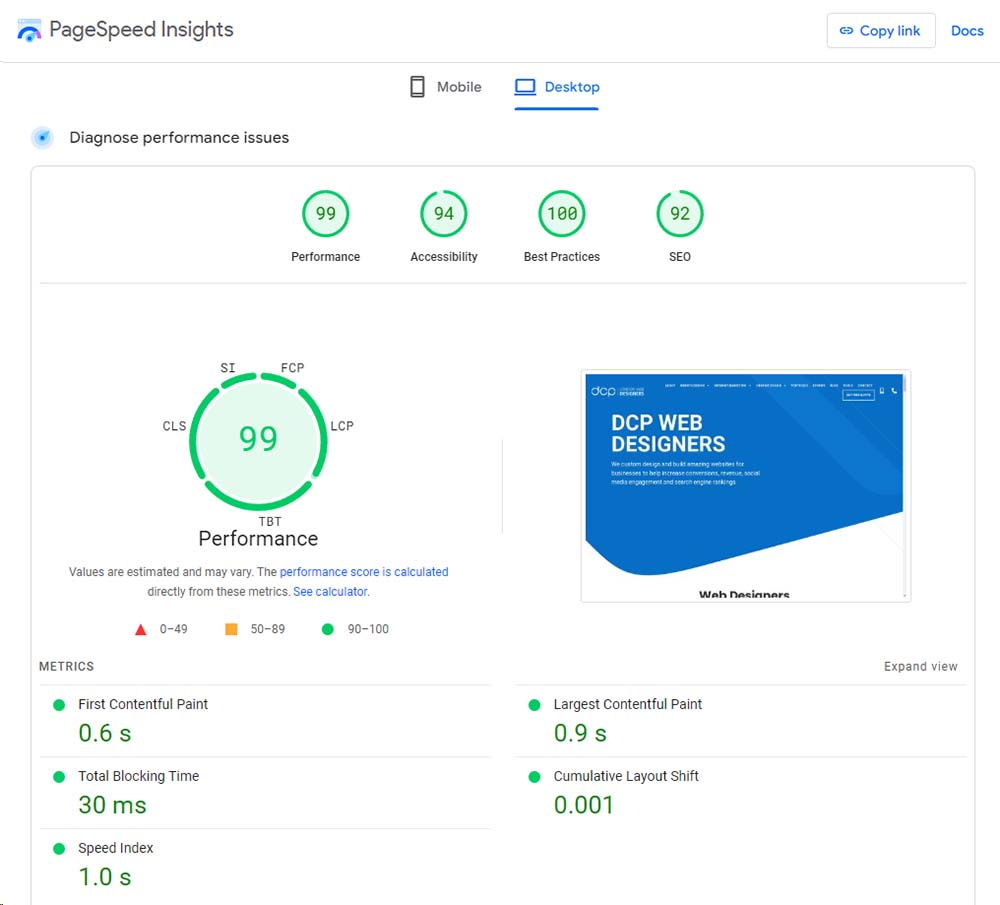
Testing your site’s speed regularly helps you identify bottlenecks and areas for improvement.
Popular Speed Testing Tools:
- Google PageSpeed Insights: Provides insights into mobile and desktop performance.
- GTmetrix: Offers detailed reports and recommendations for speed optimisation.
- Pingdom: Focuses on load time, performance grade, and page size.
Tip: Use these tools to track your improvements after implementing speed optimisations.
11. Use Lazy Loading for Media

Lazy loading ensures that media files (images, videos, and iframes) are only loaded when they’re about to appear in the user’s viewport. This reduces initial page load time.
Plugins for Lazy Loading:
Tip: WordPress includes built-in lazy loading for images, but for advanced functionality, use plugins.
12. Disable Hotlinking

Hotlinking occurs when other websites embed your images directly, using your server resources. Preventing hotlinking ensures that your bandwidth isn’t wasted.
How to Disable Hotlinking:
- Add a snippet to your .htaccess file (consult your hosting provider for guidance).
- Use plugins like All In One WP Security & Firewall for an easier solution.
13. Leverage Browser Caching

Browser caching allows users to store website files locally, reducing load times for repeat visits.
How to Enable Browser Caching:
- Use a caching plugin like WP Super Cache or W3 Total Cache.
- Configure caching settings in your hosting control panel.
Tip: Set a long expiration period for static files like images and stylesheets.
14. Keep Your WordPress Installation Updated

Keeping WordPress core, themes, and plugins updated ensures you benefit from the latest performance improvements and security patches.
Tip: Use managed WordPress hosting or automation tools like ManageWP to schedule regular updates.
15. Use Accelerated Mobile Pages (AMP)
AMP is a framework designed to make mobile pages load faster by stripping down unnecessary elements.
How to Enable AMP:
- Install the AMP for WordPress plugin.
- Configure it to ensure your site maintains a balance between performance and design.
Conclusion
Improving your WordPress website loading speed is not just about following best practices—it’s about understanding your site’s unique needs and taking actionable steps to optimise its performance.
By implementing these techniques, you can enhance user experience, improve SEO rankings, and ultimately grow your online presence.
Start with small changes and test your site’s performance after each adjustment. Over time, these optimisations will lead to noticeable improvements in speed and user satisfaction.
Your faster WordPress website is just a few steps away—start optimising today!

