

If you are planning on building a new website using WordPress, then why not take a look at some of these useful WordPress Tips and Tricks For Beginners?
WordPress is a popular platform for building custom business website solutions, you can create standard websites or even ecommerce website solutions using WooCommerce.
The following tips highlight various WordPress themes, page builders and plugins I frequently use to create custom website solutions. Whether enhancing functionality or improving design, these tools offer flexibility, performance, and ease of use, ensuring a tailored and professional online presence for any business or project.

Table of Content
- Choose Your Hosting
- Selecting a WordPress Theme
- Try Theme Demos
- Install SEO Plugin
- Compressing Images
- Remove Unused Plugins
- Backup Your Website
- Keep Your Plugins Updated
- Install Google Analytics
- WordPress Permalinks for SEO
- WordPress 301 Re-Directs
- SSL Certificate
- Install Security Plugin
- Install Cache Plugin
- Form Processing Plugin
- Maintenance Mode
- Custom Post Types
- Duplicate Posts
- Change Default Admin URL
- Install Google Recaptcha
- Install SMTP Plugin
- WordPress FAQs
1. Choose Your Hosting
Finding a suitable and reliable hosting provider for your business WordPress website can be a tricky task, as some hosting providers are simply awesome, but many are not.
You want to want to have your website hosted by a provider who really cares and has good tech support when problems arise.
Your website hosting provider must provide fast and secure hosting services with enough resources available to make sure your website does not crash, avoid downtime and provide easy methods of contacting support.
I would advise not picking the cheapest hosting you can find, I would advise researching the independent reviews of a hosting provider to get a real insight into how they operate their hosting solutions.
Personally, I like to use SiteGround for the simple reason:
- The hosting is fast
- Built specifically for WordPress
- Free Plugin for security
- Free Plugin for website migration
- Free Plugin for WordPress optimisation
- Free SSL Certificate
- Built-in caching to make websites load faster
- 30 Day rolling website backups
- Optional manual backups
- Great technical support if ever required
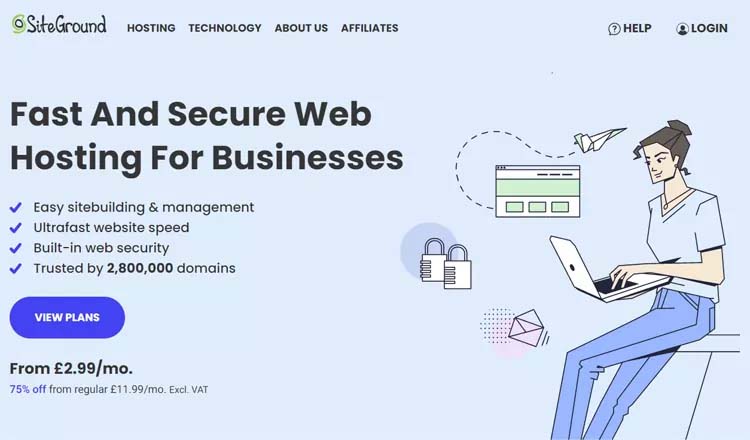
Best of all SiteGround often offers discounts for the 1st year so you can get awesome WordPress hosting for only £2.99 per month!
2. Selecting a WordPress Theme
There are hundreds of WordPress themes to select from, so you are spoilt for choice. However, I would also recommend buying a theme rather than using a free Theme.
Why?
When you buy a theme you first want to check the reviews and make sure the theme is well supported, Page builders such as Divi or Elementor have hundreds are themes and are well supported by a large growing community.
Page builders are especially useful if you want more control over your website and want to make specific customisations.
You can also check Theme Forest for a wide range of WordPress themes to suit the type of business you run.
Make sure you read the reviews and select a Theme that has many sales and good feedback.
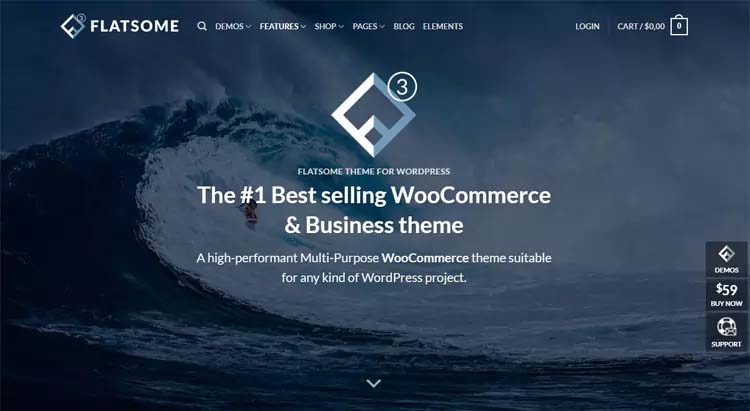
At present, for Brochure-style websites I am using Divi and for ecommerce websites, I am using Flatsome Theme.
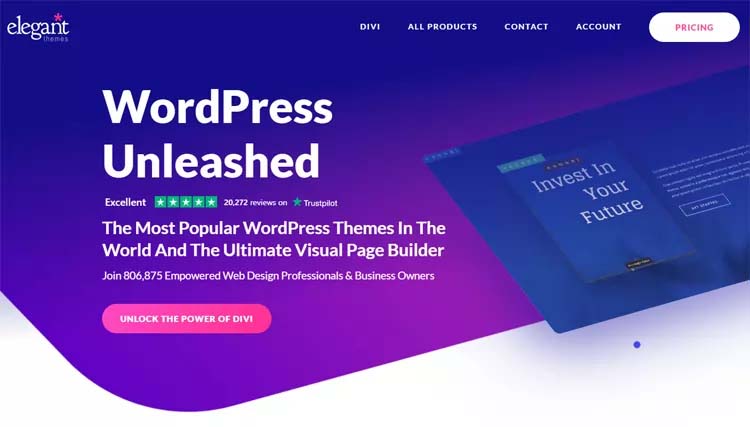
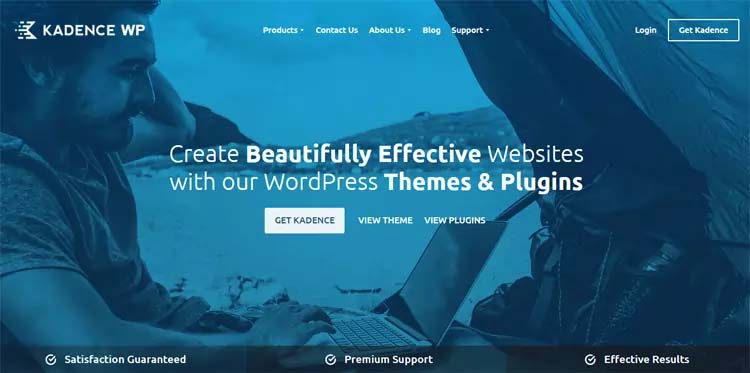
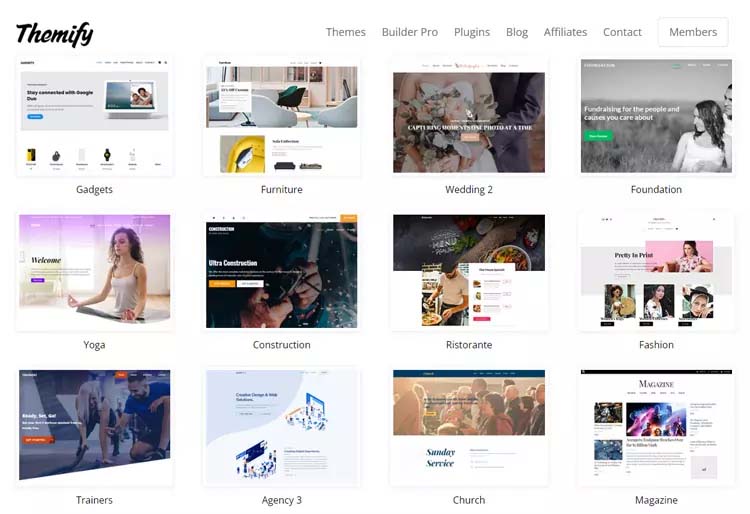
Here are some other popular and well-supported themes:



3. Try Theme Demos
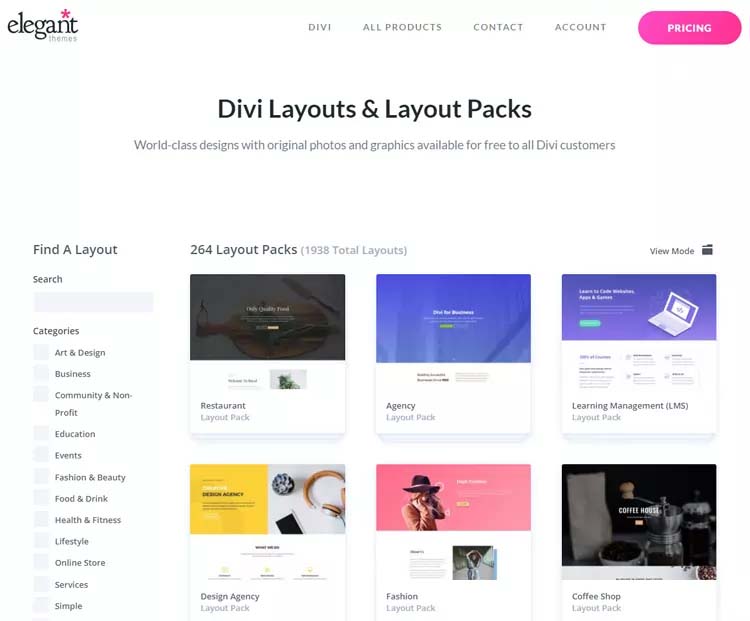
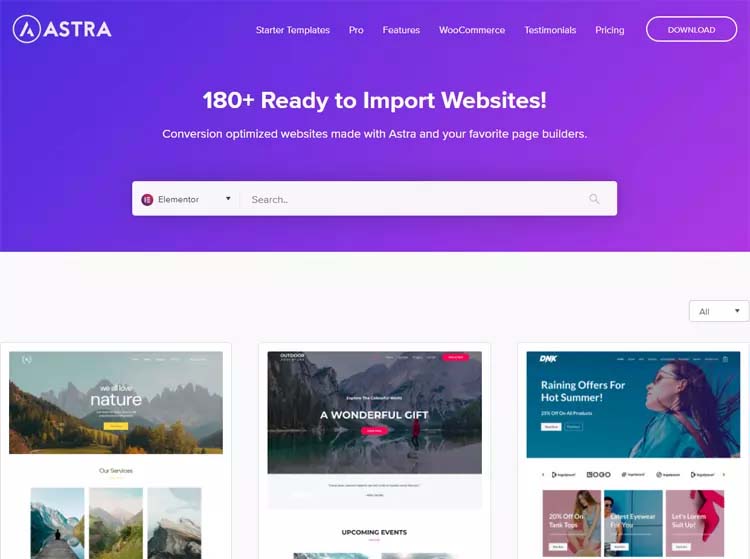
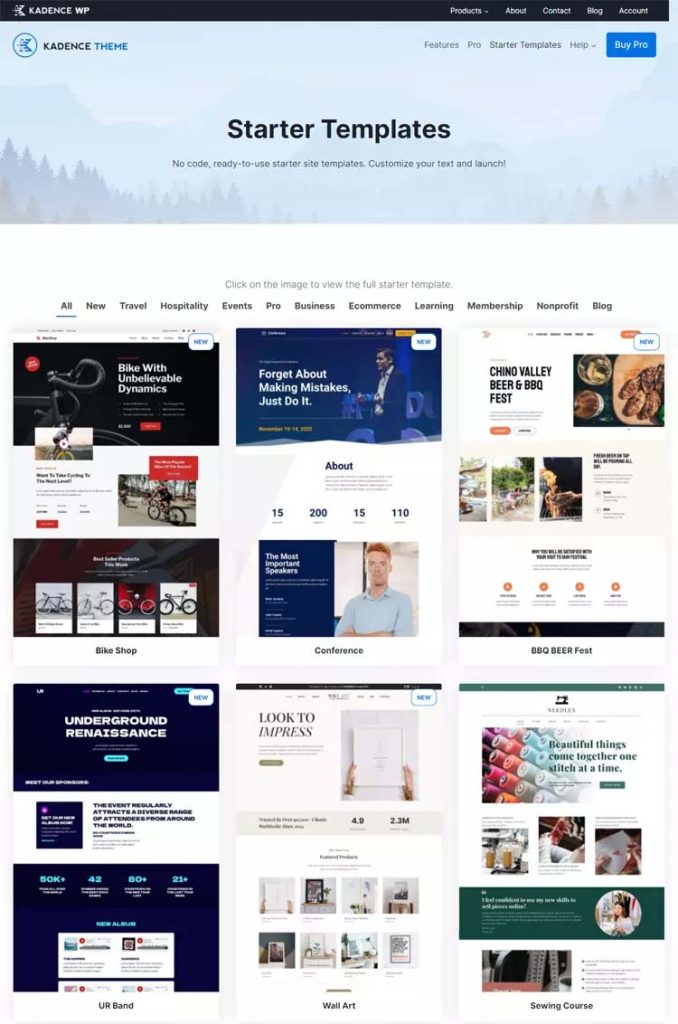
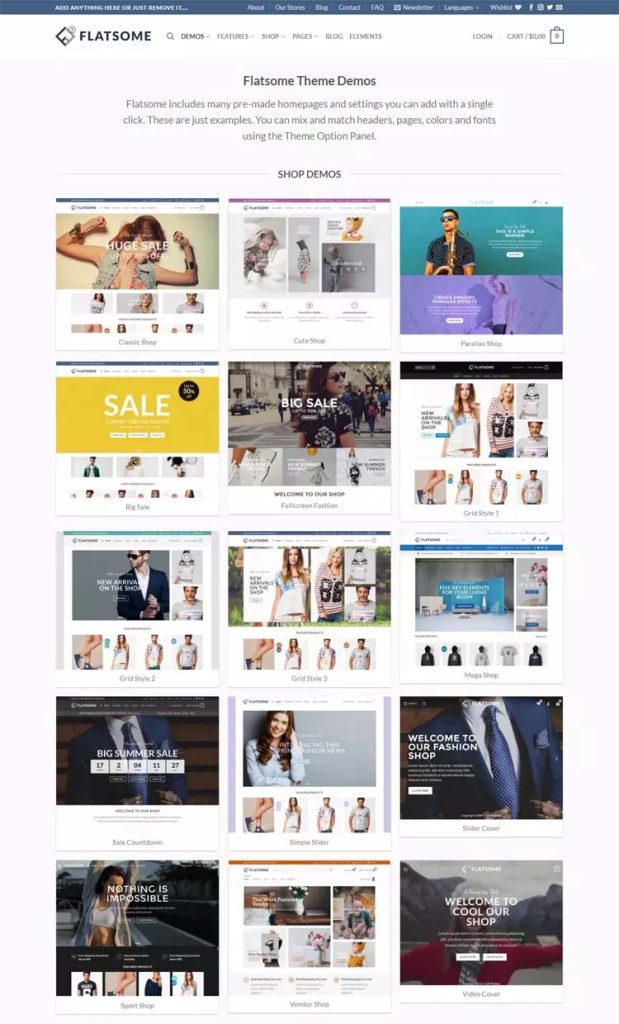
Before you spend your hard-earned cash on a WordPress theme, it would be logical to test the theme using a demo. Most Theme developers will have a demo page to showcase what can be done with their theme. Viewing the demo theme will give you an understanding of what can be achieved as different themes contain different features.
If you are working with an experienced web designer then it would be advisable to ask them what is the best theme to suit the type of business you run, but if the developer is really good then they will custom design the website using a page builder tool to make your website unique.
Here are popular WordPress theme demos:
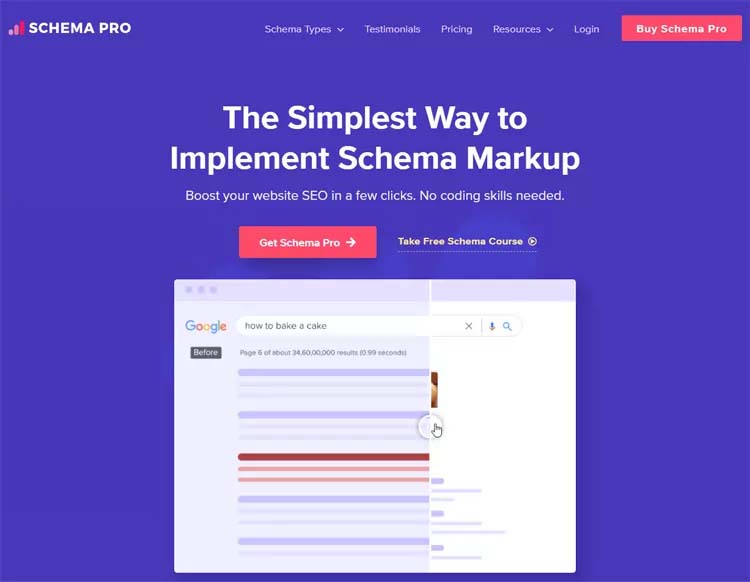
4. Install SEO Plugin
If you want your website to rank high in Google search then SEO (Search Engine Optimization) should be a part of your marketing strategy.
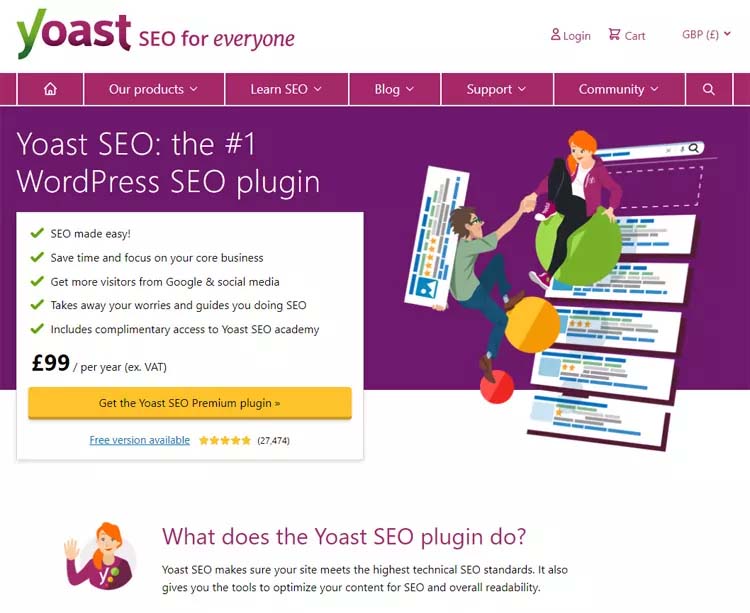
Luckily there are many useful SEO plugins available for WordPress, personally, I use the Yoast SEO plugin which has great documentation and educational knowledge about SEO.
Yoast SEO can be used on both standard business websites and eCommerce websites.
SEO is not an automated task, just installing the Yoast plugin will not mean your website will rank well on Google, you have to put effort into your keyword research and content writing to attract customers to your website.
It should be noted that Yoast SEO has a free and paid version. If you are a small start-up company then installing the free version would be a good choice to start, you can then upgrade to the paid version, but you should still research and understand how SEO really works in order to boost your website up in the rankings.
Yost SEO will automate some of the common SEO tasks such as creating a sitemap, robots.txt file and schema markup. Yoast SEO also extends WordPress allowing you more control over your meta titles, meta description and social media OG (Open Graph) images.
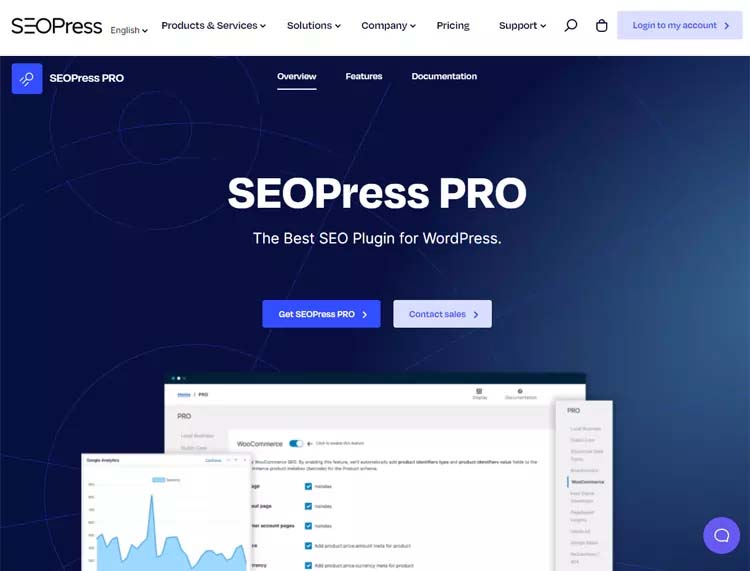
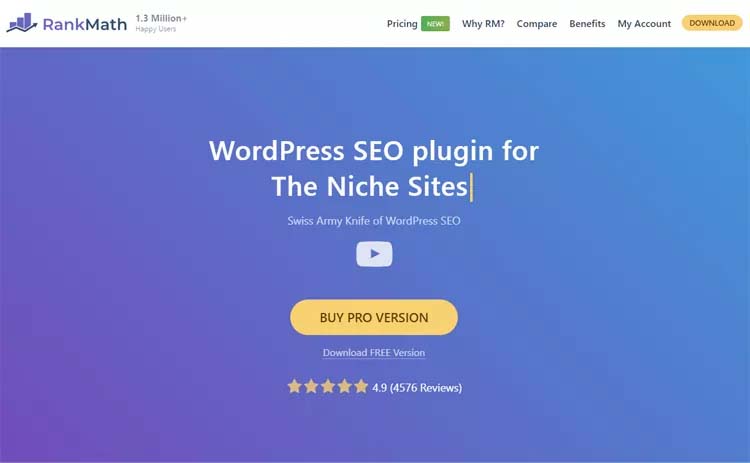
Here are some other popular and well-supported WordPress SEO plugins to consider:
5. Compressing Images
Have you ever been to a website that takes ages to load, very frustrating! Websites that load too slow are simply a poor user experience and often visitors will not wait for more than 2 or 3 seconds for the page to load, I know that does not seem like a long time, but we live in a world where information is accessible in seconds so it’s best your website loads super fast.
There are many reasons why a website might be running slow such as slow website hosting (see point 1 above) or incorrect domain configuration.
One of the main reasons for a website that loads slowly is the image file sizes are too large.
It is important to compress images to make them load faster.
There are many plugins that you can use to help compress your images such as:
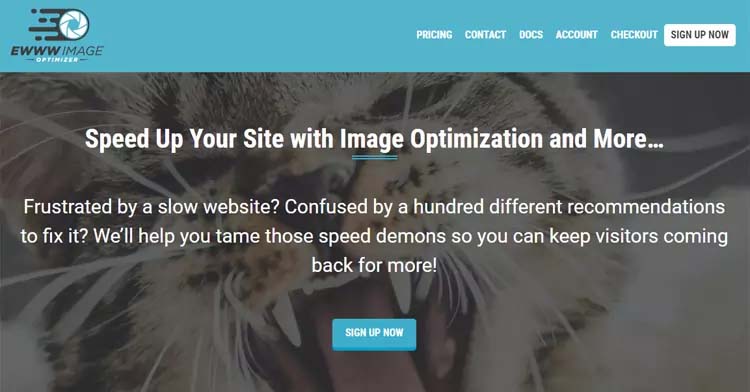
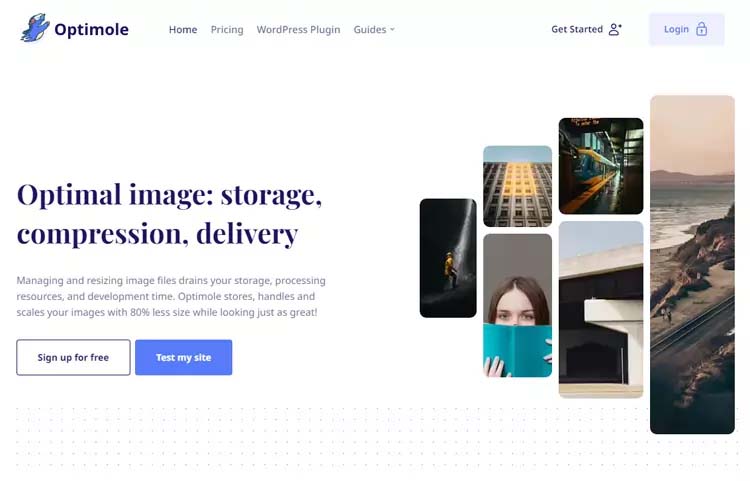
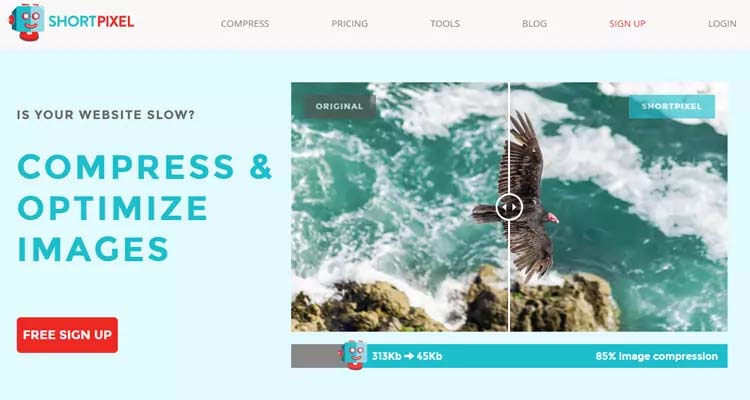
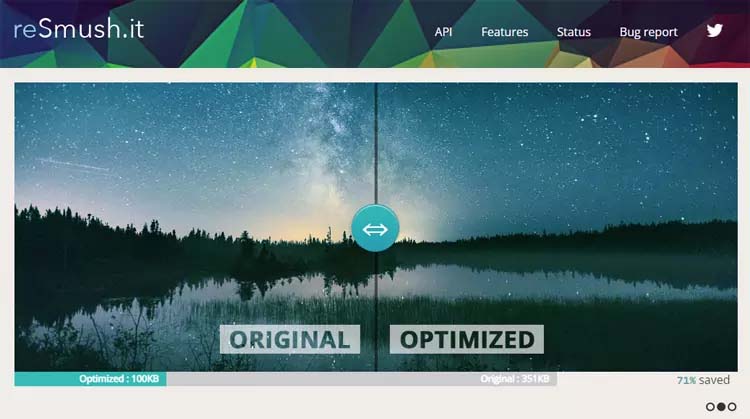
Most of the image compression plugins have a free option but these tend to be limited.
If you are a “smart cookie” then you would have noticed in point 1 above that I stated that SiteGround gives you a FREE optimisation plugin! So why pay a yearly fee when you can have it for free!
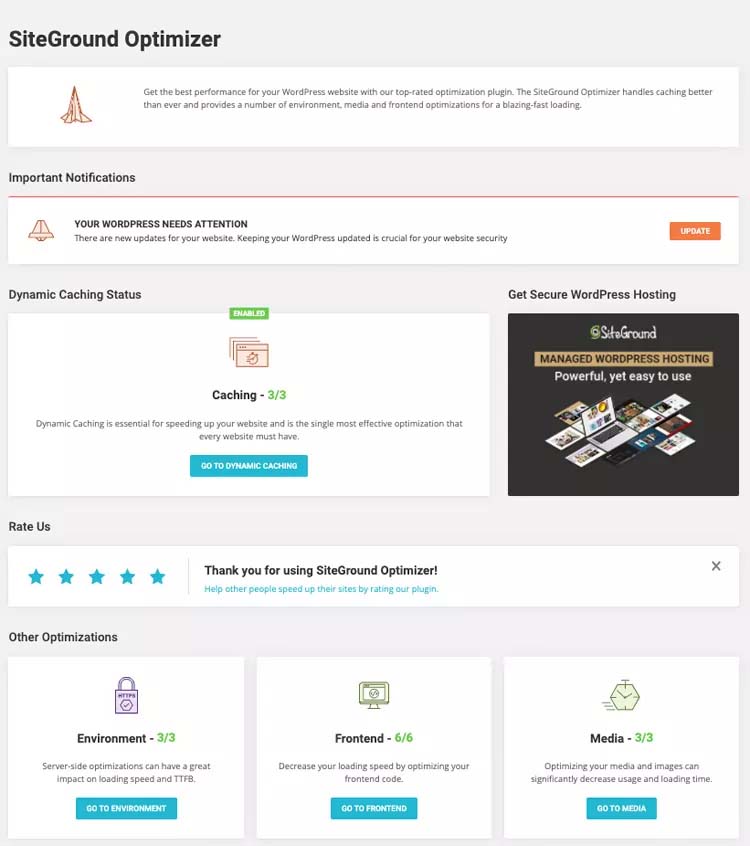
The SiteGround optimisation plugin is not just for image compressing, you can also use it for:
- Compressing CSS files
- Compress JavaScirpt files
- Setting up caching
- Automated .webp image compression
- lazyload images
- Database optimisation
6. Remove Unused Plugins
You want your website to run fast right? You also want your website to be as secure as possible.
There are thousands of free plugins you can install on your WordPress website, but that does not seem like you should install them all LoL.
Make sure you only install plugins that you really need, if you install a plugin and you are simply not using it then I recommend uninstalling.
Unfortunately, WordPress is a hacker’s dream, the more plugins you install, the more security risks you inherit. Just do a Google search on “WordPress plugin vulnerability” and you will see there are lots of results returned.
I don’t want to scare you away from using WordPress, as WordPress is excellent and the core software is very secure and patched often, but plugins built by third-party developers may not be updated so frequently.
Paid plugins tend to be patched quicker than free plugins in most cases.
Vulnerabilities are also found in WordPress themes.
So take my advice please, un-install all WordPress plugins and themes you are not using, this will simply help you to void unwanted vulnerabilities.
7. Backup Your Website
You should really keep to daily backup of your website for 30 days rolling. In the event your website has a major crash or is hacked then you can simply re-install a backup of your website.
Most hosting providers should have a 30-day rolling backup system for you to access via your hosting control panel in the event you need to re-install from a backup, but I suggest you check the details of the hosting plan as not all hosting providers have this option.
Alternatively, you can install a plugin to make a backup of your website. Here are some backup plugins you may want to consider:
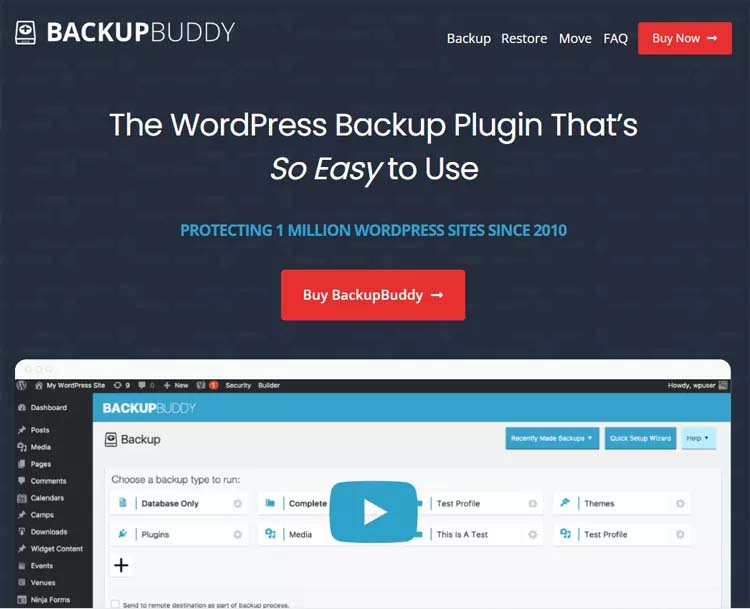
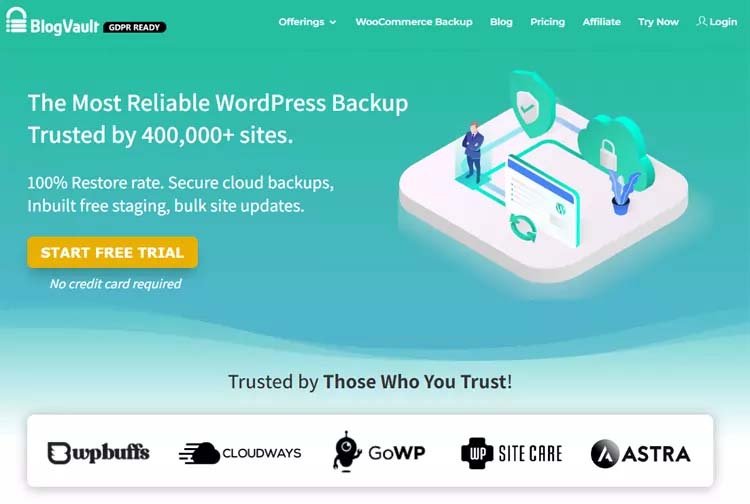
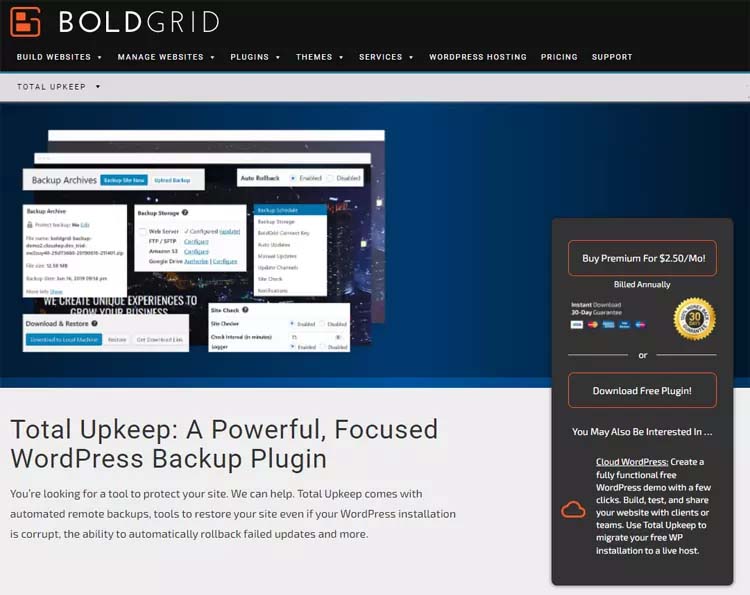
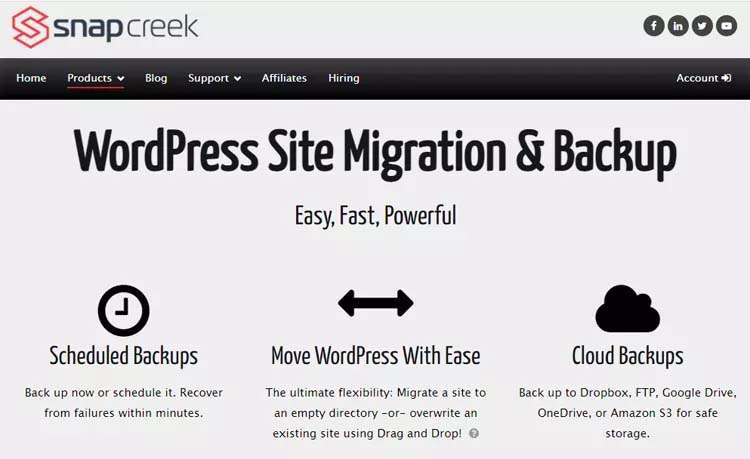
Like the image compression plugins above, some of these backup plugins have free and paid versions.
I often use the Duplicator plugin to back up smaller websites and also use the plugin for website migration between hosting providers.
Now if you are an “extra smart cookie” then you would have noticed in point 1 above, that SiteGround offer you a free 30-day rolling backup with your hosting plan!
8. Keep Your Plugins Updated
If you have installed plugins on your website, then in the most recent version of WordPress you will find an option to “auto-update”. In most cases, you would want to turn on auto-updates to ensure you are using the latest and most secure plugins that you have installed.
If you are running larger complex WordPress websites, like a WooCommerce shop then you may want to disable auto-updates for the WooCommece plugin. Often WooCommece will release an update but the plugin developers need more time to apply fixes for compatibility. You need to keep track of what plugins you are using and check they work correctly with the latest versions of your theme, WordPress and WooCommece if installed.
You can find information about plugin compatibility from the developer’s website or the WordPress plugin directory.
Make sure you keep your plugin updated as often as possible to avoid Vulnerabilities.
You can log in to your WordPress dashboard and see what plugins need updating.
WordPress Plugin Dashboard
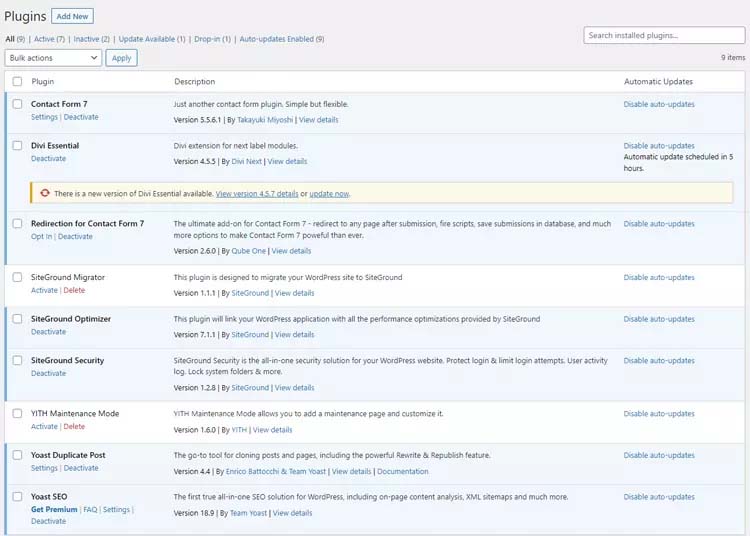
Updating a plugin should be no more than a simple mouse click.
Always make sure you do a backup of your website (see point 7 above) before doing any major plugin updates or set up staging to check for plugin compatibility before updating your live website.
9. Install Google Analytics
Building a new website is great, but it would be even better if you knew how many people are visiting your website and where they are located. Google Analytics provides all this information and much more.
Google Analytics can be used to evaluate the performance of your website and understand how visitors are using your website. For example, you may have created a blog post that is receiving lots of traffic, it would be a good idea to create other blog posts that support this post with more useful information. You can then link between the blog posts to help improve search engine rankings and internal linking.
There are various ways to install Google Analytics on your WordPress website, this really depends on the theme you are using. I would suggest doing a Google search with the theme name and keyword install Google Analytics.
Example: Divi Install Google Analytics
You can also set up Google Analytics on your website by using a plugin. MonsterInsights is one of the most popular plugins for setting up Google Analytics on a WordPress website. There is a free and paid version for MonsterInsights, so give the free version a try and see if it works for you.
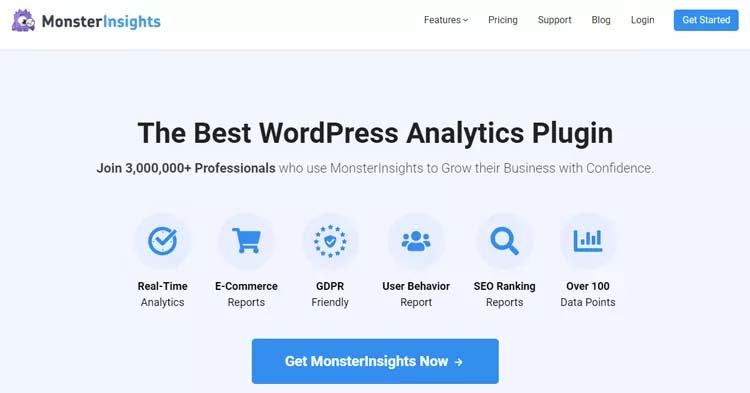
The advantage of using MonsterInsight is all the data is displayed directly in your WordPress dashboard.
The disadvantage is you have another plugin using resources, so in most cases, it is better to try and set up Google Analytics directly in your theme and view analytics using the Google Analytics website.
10. WordPress Permalinks for SEO
WordPress has the option to change the URL style of permalinks. Permalinks are simply any permanent link like a link to a service page or blog post.
WordPress auto-generates permalinks when you create a new page, blog post, product, category or even upload a file. It is important that each piece of content or page on your website has a unique link, this allows you to share or link to these pages.
WordPress auto-generates permalinks for pages are normally fine, but for blog posts, WordPress may add the date into the URL which is not the best for user experience or SEO.
You can select the “Post name” option which is located in the WordPress admin control panel under the settings tab for a better URL structure.
- Login into WordPress admin.
- To go “Settings” / “Permalinks”.
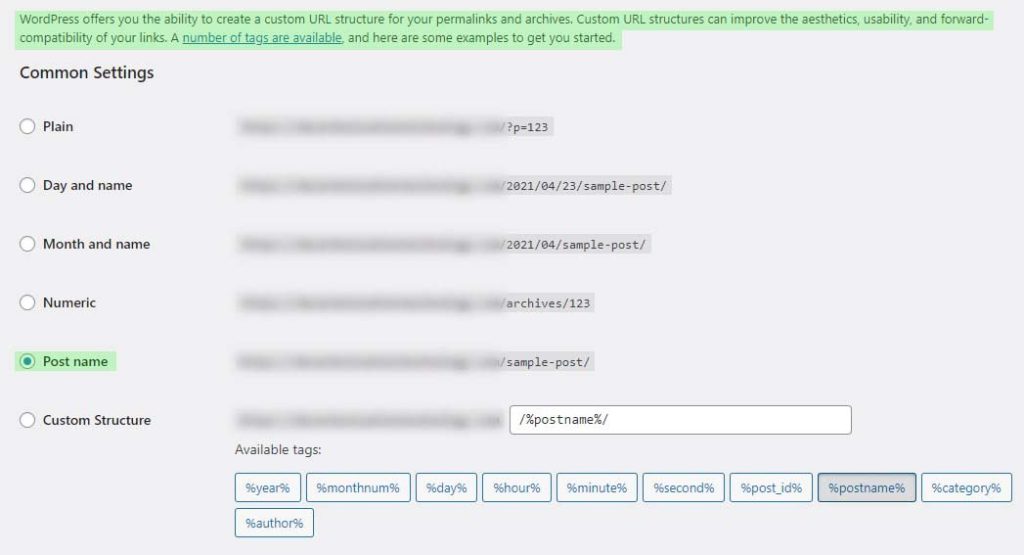
Note: If you plan to change your URL structure in WordPress as shown above then it is important to set up 301-redirects.
11. WordPress 301 Re-Directs
Each page on your website has a unique link (permalink), if you publish a page and then change the link at a later date then this may cause issues with your page rankings on Google.
Google will go to your website scan through all the pages and keep a record of the website content and links for pages. This information is used in the search engine results for your website.
So, if you change a link (permalink) it is important to let the search engines know, this can be done by setting up a 301 redirect.
For example, many years ago my website used .html at the end of a URL link: https://dcpweb.co.uk/website-design.html
If you click the link above you will automatically be redirected to the following URL that does not contain the .html extension: https://dcpweb.co.uk/website-design
If I did not set up the 301-direct then anyone who had the URL with the .html extension or anyone who clicked on a social media post that contains this link would be taken to a 404 error page (Page Not Found).
It is important to set up 301 redirects for not only SEO but also for user experience.
If you purchase Yoast SEO premium, then you will have access to a 301-redirect tool. Yoast will also automatically set up 301 redirects for you if you change a URL for a published page.
Alternatively, you can download the Easy Redirect Manager plugin which has good features for the free version and can be upgraded for more advanced features if required.
12. SSL Certificate
An SSL certificate is a must for any business website. Not only does it bring credibility to your website but also helps to prevent security breaches and protects data entered into your website by visitors.
Google will also rank your website higher in search results if you are using an SSL certificate on your website.
If you can check if you are running an SSL certificate by simply looking at the website URL.
A website running an SSL certificate will have HTTPS in the URL – for example: https://dcpweb.co.uk/
If you are a “super smart cookie” then you will have noticed in point 1 above, that SiteGround will give you a Let’s Encrypt SSL certificate for free!
Free Let’s Encrypt SSL certificate
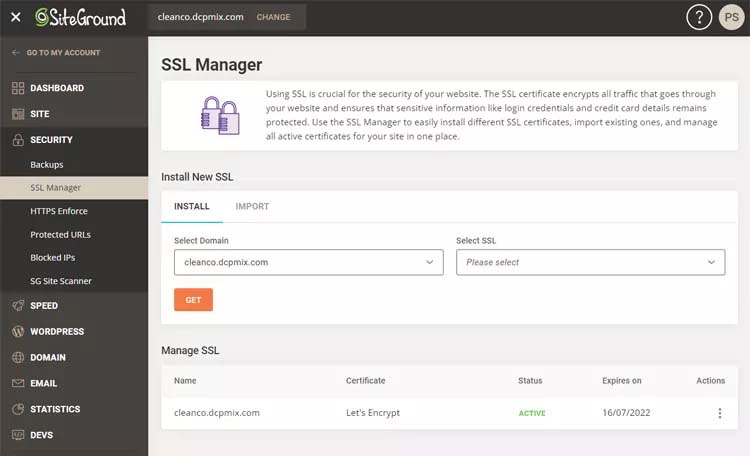
It is also important to re-direct the HTTP URL to HTTPS to ensure all visitors are viewing your website using the SSL certificate.
For example, if you click this link https://www.dcpweb.co.uk my website will re-direct you to https://dcpweb.co.uk/
Most modern web browsers will also show a padlock icon in the address bar to show a website is using SSL encryption.
If you are using SiteGround hosting then the re-direction of HTTP to HTTPS to done automatically!
You can also set up the re-direction manually by editing the .htaccess file with the following:
RewriteEngine On
RewriteCond %{HTTP_HOST} ^yourdomain.com [NC]
RewriteRule ^(.*)$ http://www.yourdomain.com/$1 [L,R=301]
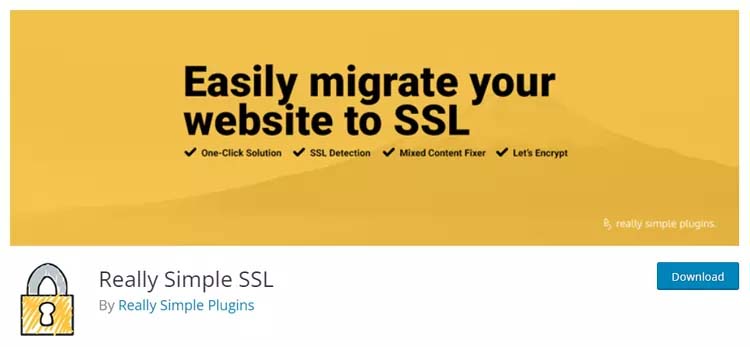
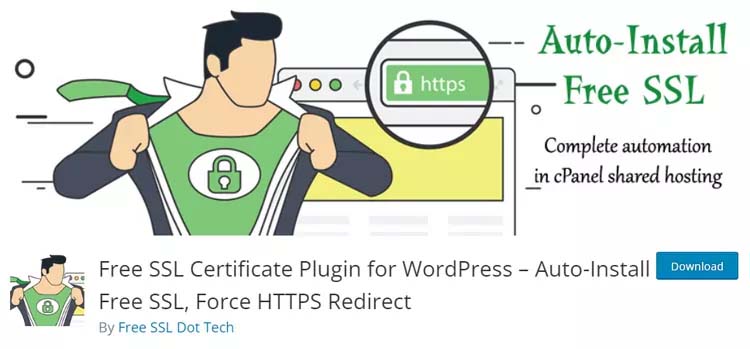
Here are some other useful SSL certificate WordPress plugins:
13. Install Security Plugin
You probably know that WordPress is a major target for hackers for the simple reason there are millions of WordPress websites.
Installing a security plugin can save you a lot of headaches and help prevent your website from being hacked.
However, keeping your plugins, theme and WordPress up to date is the most important. Security patches and updates are released often so simply turn on auto-updates and let WordPress do all the hard work for you.
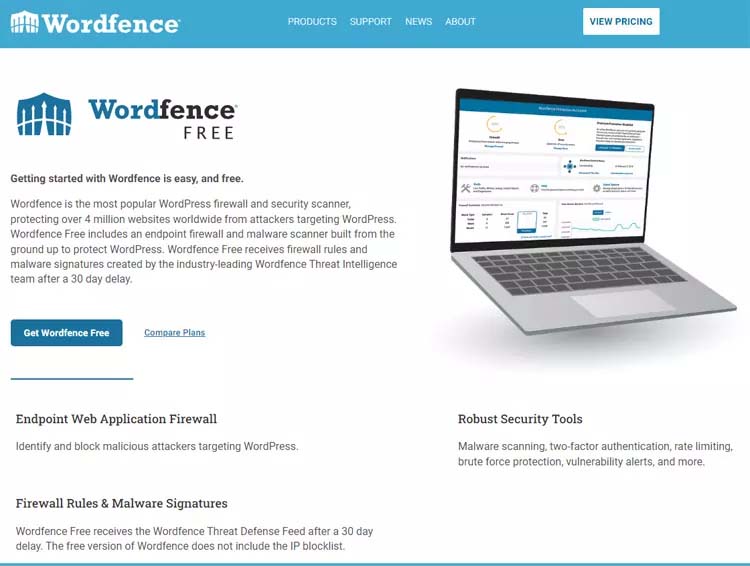
WordFence is a popular plugin for WordPress security. Just like other plugins, there are free and paid versions.
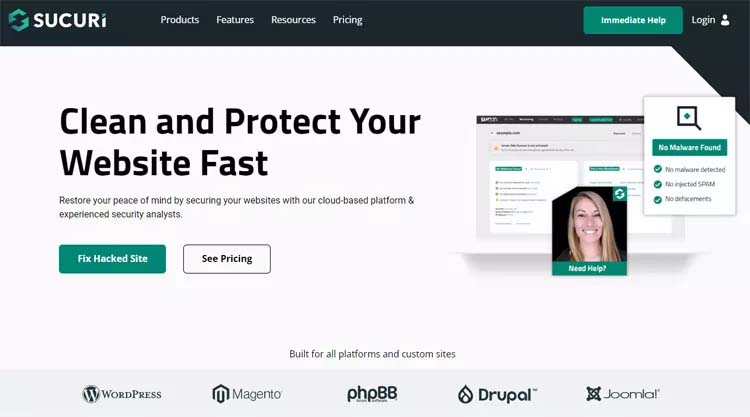
Here are some other popular WordPress Security Plugins:
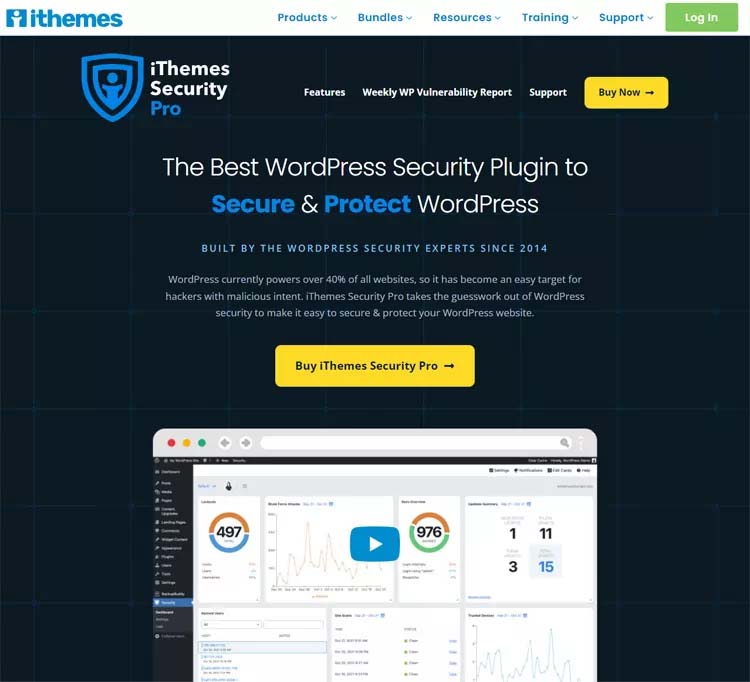
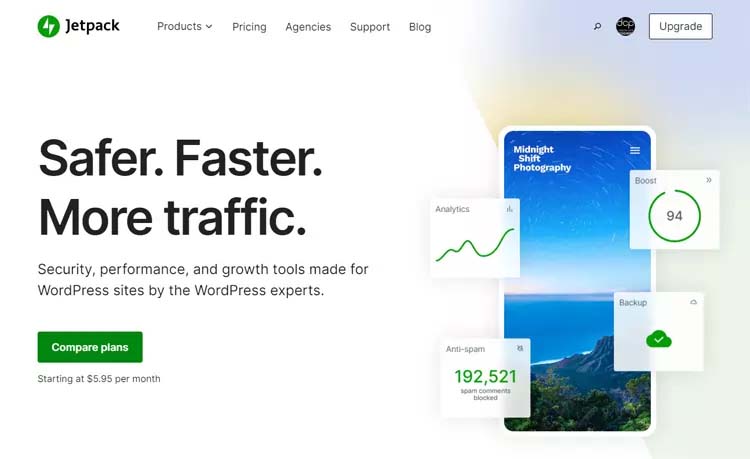
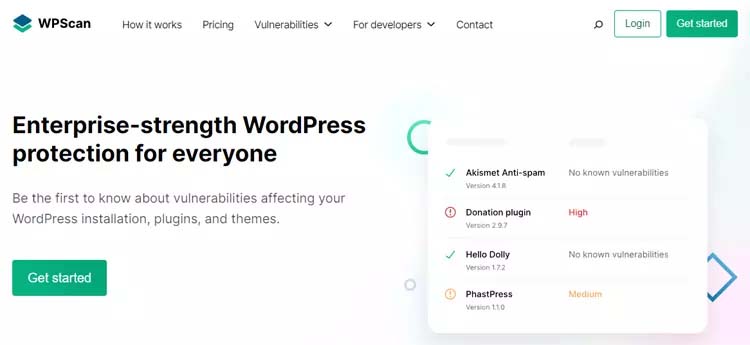

If you are an “awesome smart cookie” then you will have noticed in point 1 above, SiteGround will give you a free security plugin!
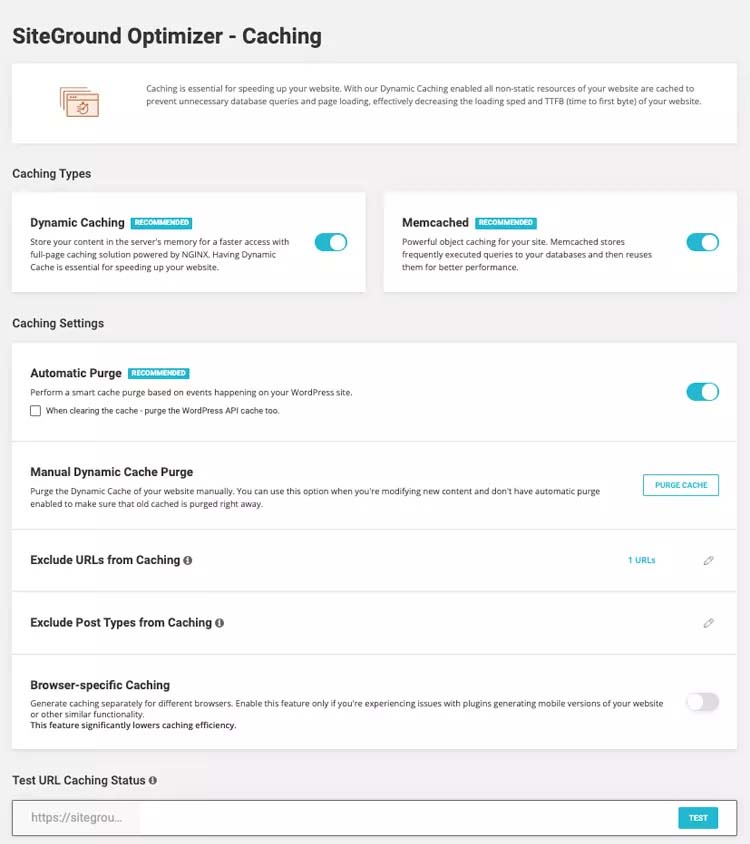
14. Install Cache Plugin
A cache plugin will help to speed up your WordPress website.
Most pages on your website will not change very often, like a contact page or a blog post.
A caching plugin will create a static version of your web page. Website visitors are served the static version of your page rather than the dynamic version created by WordPress.
The static version of a website page will load much faster for a website visitor as the page does not need to utilise the WordPress database to pull information for the page (the page has the content in static form).
You have the ability to clear the cache, which will force the caching plugin to create a new cache, this would typically happen when you have made an update to a page.
Good caching plugins will automatically update the cache after you save edits to your WordPress page.
There are many caching plugins available, some are free and some are paid.
Here are my top 3 caching plugins:
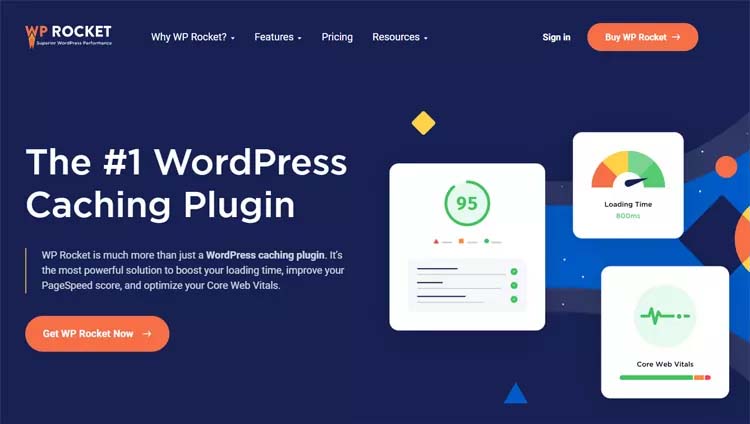
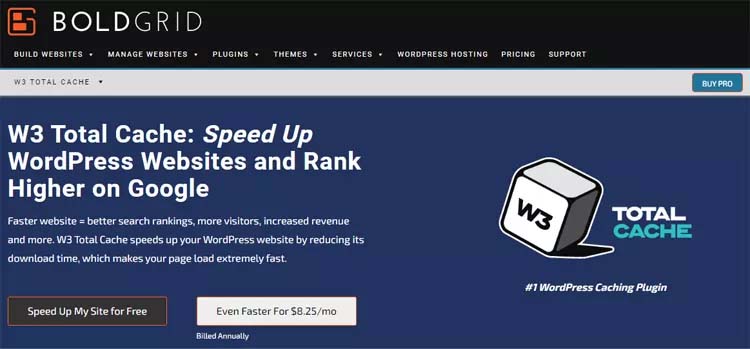
If you are the “ultimate smart cookie” then you will have noticed in point 1 above, SiteGround gives you a free caching plugin!
15. Form Processing Plugin
Often we want to create a contact form on our website pages allowing customers to send us an enquiry.
Contact forms are essential and give our website visitors an easy method to contact us.
There are many plugins that allow us to create contact forms on our WordPress websites.
Here is a list of useful WordPress contact form plugins:

It should be noted that page builders like Divi and Elementor have built-in form builders.
Personally, I like to use Contact Form 7 which has over 5,000,000 downloads.

Contact Form 7 is very easy to use and you can have a basic form up and running in a few minutes.
There are also a lot of plugin extensions for Contact Form 7 that add more advanced features.
I often install Contact Form 7 Database Addon (CFDB7), this plugin saves form submissions to the WordPress database.
In most cases, you would want the contact form data sent to your email account, but it is also a good idea to keep a record of each submission in the WordPress dashboard.
Hate spam submissions? me to! Contact Form 7 also supports Google Recaptcha which helps to prevent automated BOT SPAM submissions.
16. Maintenance Mode
If you are planning some major updates to your website or you are in the process of developing your website then it would be a good idea to set up an under-construction or website under maintenance page.
You will often see an under-construction page for a website while a developer is working on your project.
This page can have some key information about your business, what visitors should expect when they visit your live website, how visitors can contact you and much more.
Maintenance pages tend to be less informative, something simple like “website under maintenance, please check back in 1 hour”.
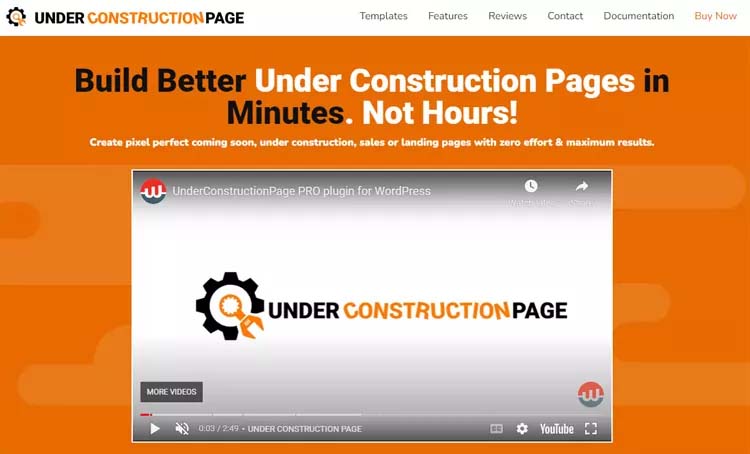
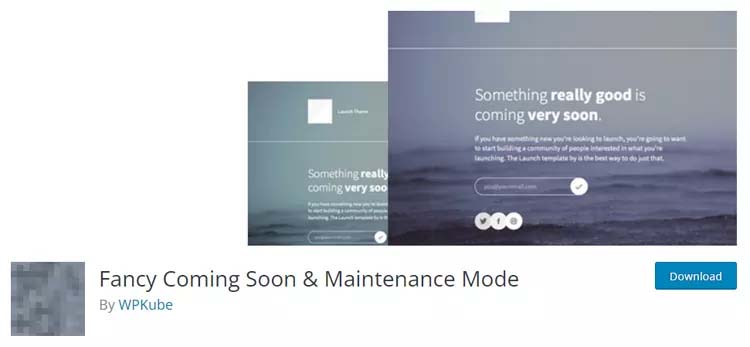
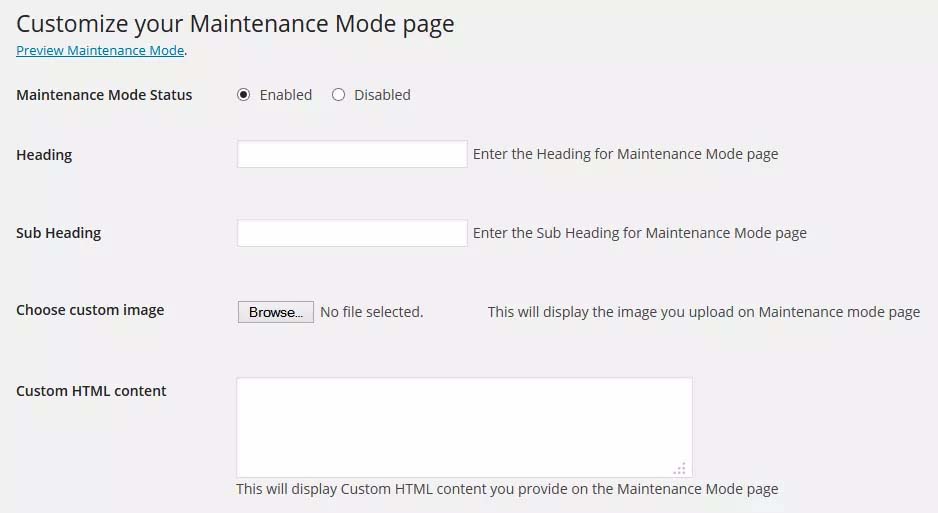
There are a few good plugins that you can use to create under-construction and maintenance mode pages.
Personally, I like to use the “WP Maintenance Mode & Coming Soon” plugin, it is free, easy to understand and set up, you can also set up access to the website for your client and block search engines from caching the website until the launch.
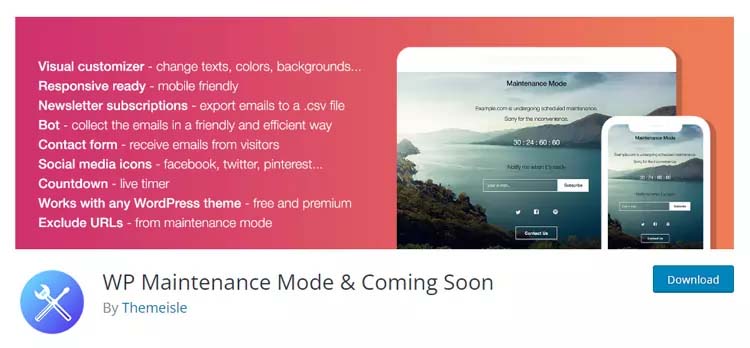
There are many more features:
- Fully customisable (change colours, texts and backgrounds)
- Subscription form (export emails to .csv file)
- Countdown timer (remaining time)
- Contact form (receive emails from visitors)
- Coming soon page
- Landing page templates
- WordPress multisite
- Responsive design
- Social media icons
- Works with any WordPress theme
- SEO options
- Exclude URLs from maintenance
- Bot functionality to collect the emails in a friendly and efficient way
- GDPR Ready
17. Custom Post Types
Custom post types are useful if you want to create a section on your website that contains multiple sub-pages, a good example may be a services section or product listing section.
WordPress contains a default blog, and you can add blog posts, you can think of this as a post type “blog”.
A custom post-type plugin gives you the ability to extend WordPress and create more post types.
There are a few good custom post-type plugins available for WordPress, but the most popular plugin is Custom Post-Type UI.
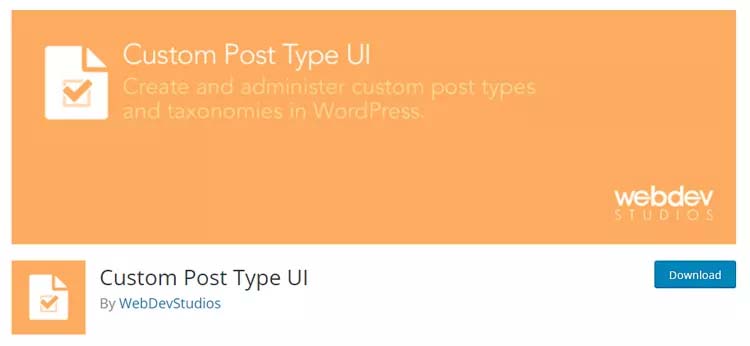
The Custom Post Type UI can be a little tricky to understand, but when mastered it give you the ability to organise pages and structure your WordPress website.
Here are some other useful Custom Post Type plugins you may want to consider:
18. Duplicate Posts
If you want to speed up the development of your website, then installing Yoast Duplicate Post is a must!
You can use Yoast Duplicate Post to make copies of existing pages, a copied page will inherit all the image assets, text content, styles and layout of the original page. You can then edit the copied page and make changes to create a whole new page. I often use this technique if I can make multiple service subpages.
You can also use Yoast Duplicate Post to make copies of products on a WooCommerce shop, for example, if you have 2 or more products that are very similar, maybe just a different colour for each product, then you can duplicate a product to speed up data entry.
The same logic can be applied to blog posts and custom post-type pages.
19. Change Default Admin URL
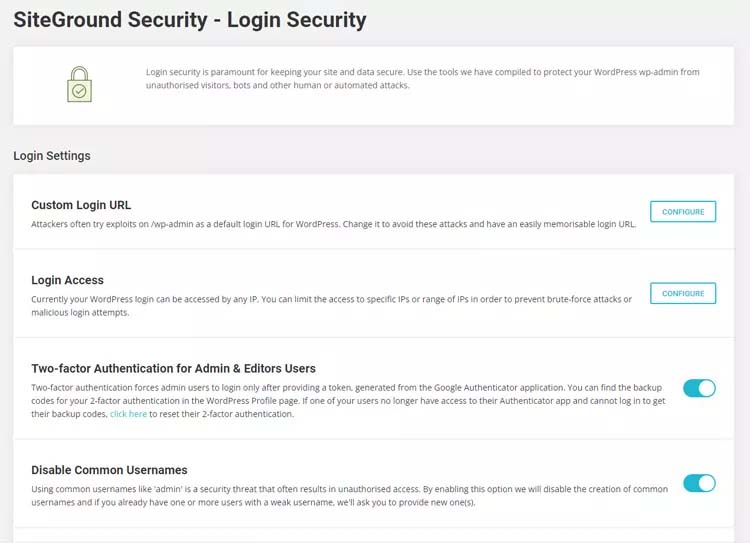
All WordPress websites as default use “wp-admin” for the WordPress admin URL. It would be advisable to change the default WordPress admin login URL.
Changing the default WP-Admin Login URL makes it more difficult for automated attacks against your website.
I often use the WPS Hide Login plugin to change the default admin login URL.
The SiteGround security plugin also gives you the ability to change the default login URL for WordPress websites.
20. Install Google Recaptcha
If you have a contact form on your website then it would be a good idea to install Google Recaptcha.
Installing Google Recaptcha will help to prevent website SPAM form submissions.
Google Recaptcha can also be installed on the customer registration form for WooCommerce shops, customer login form and WordPress admin control panel.
Many of the form creation plugins noted in point 15 above support Google Recaptcha.
I often use the Login No Captcha reCAPTCHA plugin for business WordPress websites and WooCommerce shops.

21. Install SMTP Plugin
WordPress as default sends emails using the wp_mail function, which is based on PHP mail.
Although this method of sending emails works without any configuration, it is not the best solution and emails being sent are often delivered to SPAM folders.
Emails are normally sent to the WordPress admin email address for general notifications like WordPress plugin updates. Email may also be sent to your customers such as password reset emails, order confirmation emails or payment emails.
To help with the deliverability of your emails I would recommend sending emails using an SMTP plugin.
For WordPress business websites and eCommerce websites, I often use the WP Mail SMTP plugin.
The free version of the WP Mail SMTP plugin supports the default server SMTP settings.
WP Mail SMTP plugin also supports other setup options (the Pro version is paid):
- SendLayer
- SMTP.com
- Sendinblue
- Mailgun SMTP
- SendGrid SMTP
- Postmark SMTP
- SparkPost SMTP
- Gmail SMTP (Gmail, Google Workspace, G Suite)
- Microsoft SMTP (Outlook.com and Office 365) [Pro]
- Amazon SES SMTP [Pro]
- Zoho Mail SMTP [Pro]
- All Other SMTP
When using server SMTP settings you can set the “from name” and “email address” for outgoing emails.
WordPress Frequently Asked Questions
Why choose WordPress for your website?
According to W3Techs, WordPress is used by 42.9% of all websites on the internet and 64.1% of all website content management systems.
As you can see, WordPress is a very popular web content management system (CMS) and has great support from a growing community.
Also, WordPress CMS is free and open-source, so in theory, you can set up a website with minimal cost. More advanced web developers can even create custom plugins if required. At DCP we have created custom API plugins for various WordPress projects to import data in real-time.
WordPress can be enhanced by installing a range of free or paid plugins. Plugins add new features to your website, but I would advise you to minimise the number of plugins you install.
How can I check the ranking of my keywords?
SEO (Search Engine Optimisation) is an important element of a marketing strategy. Ranking for relevant keywords in Google and other search engines can help drive more qualified traffic to your website.
You need the ability to track the ranking of your keywords, there are many tools on the internet that can help you:
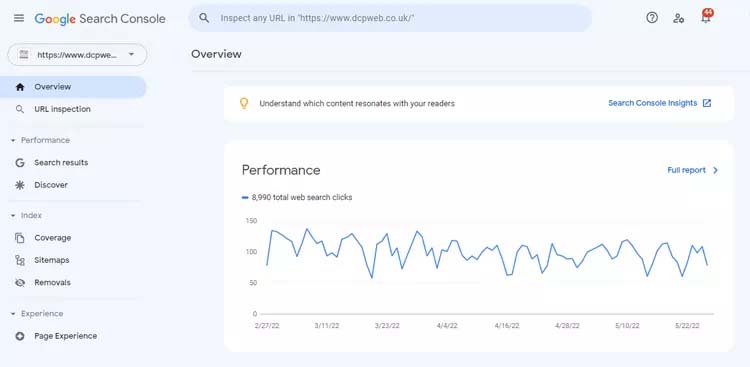


I often use the free ahrefs Free Keyword Rank Checker Tool when I want to do a quick keyword phrase ranking check.

Do I need an SSL Certificate?
In theory, you can run a website without an SSL Certificate, but many web browsers such as Google Chrome will flag the website as insecure which is not good for the user experience.
Google Chrome Warning Example
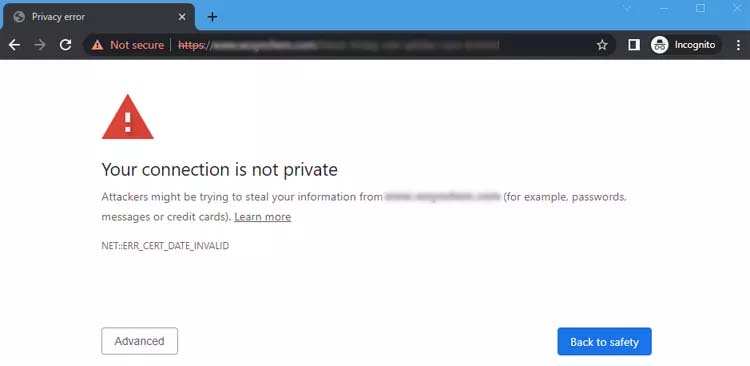
In the above images, you can see an example of a Google Chrome warning message that is displayed if an SSL Certificate is not installed.
Most hosting companies will provide you with a free Let’s Encrypt SSL certificate. Not all hosting companies offer free SSL certificates and paid SSL certificates can be purchased for only £49.00 per year.
As mentioned in point 1 above, the SiteGround hosting provider has the tools to step up a free SSL certificate for all your websites.
Can I have too many plugins?
Installing too many plugins can cause issues with your website load speed, compatibility between plugins, security issues and a drain of server hosting resources. I recommend you only install the plugins that you really need. Feel free to install plugins for testing and if they keep your requirements great, but if not then keep a note of the plugin and uninstall.
Having too many plugins can have an effect on the load speed of your website, each plugin adds more weight (code) to your website and requires more web server resources to run those plugins. Keeping your website plugins to a minimum can help speed up the loading of your website and reduce security vulnerabilities.
Should I buy a domain or use a free hosting company subdomain?
I would strongly suggest you purchase your own domain(s). I suggest you purchase your country’s top-level domain and an international domain.
For example at DCP we have the following domains:
- www.dcpweb.co.uk – UK Top Level Domain
- www.dcpweb.com – International Top Level Domain
Domain names can be purchased for as little as £8.00 per year.
View a list of my favourite domain registration providers.
How can I check if my website is mobile friendly?
Before officially launching your website, it is worth testing for mobile compatibility. Most of the visitors to your website will be using a mobile phones, so making sure your website loads fast and correctly is essential.
I suggest your test your website on your own mobile phone first to see if you can find any issues.
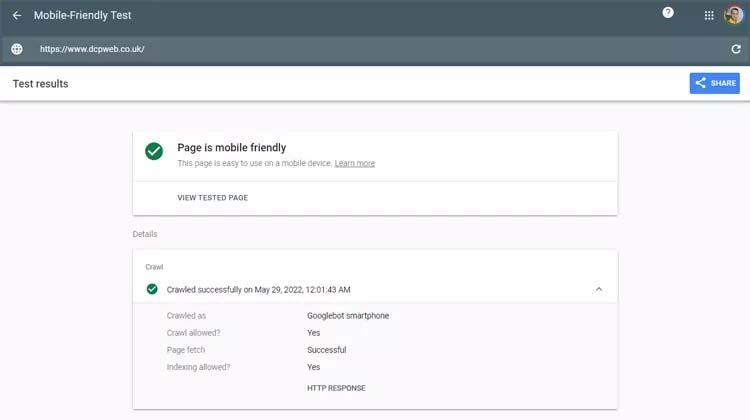
You can then use the Google mobile-friendly testing tool.
Should I create a blog on my business website?
If you have the time to create awesome articles and have the willingness to share your knowledge, then I would definitely recommend you create a blog section on your website.
WordPress has a blog system built-in as default, so there is no tech knowledge required to start a blog on your website.
Try to incorporate relevant keywords in your blog post titles and content, this will help to build your website’s authority and rank your pages higher in Google search results.
You can create categories to make it easier for visitors to find the content they are looking for.
Also, try to incorporate images and videos.
You will find many of my blog posts contain embedded videos from my YouTube channel.
Conclusion
The above tips are just some of the plugins I use when building WordPress Website Design solutions for business clients. client’s requirements determine the plugins I install, but in general, I try to limit the number of plugins I install on WordPress websites. Install fewer plugins can help improve security, make your website faster and reduce cross-plugin compatibility issues.
WordPress is a great tool for building a business website, simply websites can be created with minimum web development knowledge. Custom websites built-in WordPress require more experienced website developers.
Choosing the right hosting provider should be your first step, check the hosting provider’s independent reviews, make sure there is an easy way to communicate with tech support and remember using super cheap hosting may be OK to start but when there are issues then having a hosting company that actually cares in worth paying that little extra.
If you are planning a website solution for your business and need a web designer with over 15 years of experience then simply contact our London Web Design Agency today for a free quote!
- Custom web design
- Secure and fast website solution
- Full management training
- Take control of your website
- SEO optimisation
- Reliable web hosting and emails
Article by Pankaj Shah: DCP London Web Designers

